Getting startedChapter 1
Installation and first launch
What you need, where to download PresentClic and what you see when you start it for the first time.
What it is for
PresentClic turns your phone into a presentation remote. PresentClic Desktop runs on your computer and controls PowerPoint (or another presentation program); on your phone you simply open the remote page — no app to install.
Who can use it
Everyone. You need a license or the free 24-hour trial (see License and trial).
Where to find it
Download the installer from www.presentclic.com (download button for Windows or macOS).
Step 1
Requirements
- Computer: Windows 10 or Windows 11; a Mac with macOS 13 or later. For older Macs (macOS 10.15–12) the website links to version 2.0.5.
- Presentation program: Microsoft PowerPoint (2016 or later), Google Slides (in the browser), LibreOffice Impress (Windows only), and on a Mac also Keynote.
- Phone: any smartphone with a web browser (iPhone, Android). Nothing to install.
- Network: internet on the computer and the phone (Online mode), or a shared Wi-Fi network without internet (Offline mode, see Remote tab).
Step 2
Installing on Windows
- Run the downloaded PresentClic-Desktop-Setup-…exe file.
- The installer is digitally signed by AS LIVE MEDIA Sp. z o.o. — if Windows asks for permission (User Account Control), click Yes.
- After installation the program starts automatically, and a PresentClic Desktop shortcut appears on the desktop and in the Start menu.
Tip
On first launch Windows Firewall may ask whether PresentClic may use the network. Click Allow — otherwise Offline mode (phone on the same Wi-Fi) will not work.
Step 3
Installing on a Mac
- Open the downloaded .dmg file and drag the PresentClic icon into the Applications folder.
- On first launch macOS asks for permissions (Accessibility, Automation) — see macOS differences for a step-by-step guide.
Step 4
Welcome screen
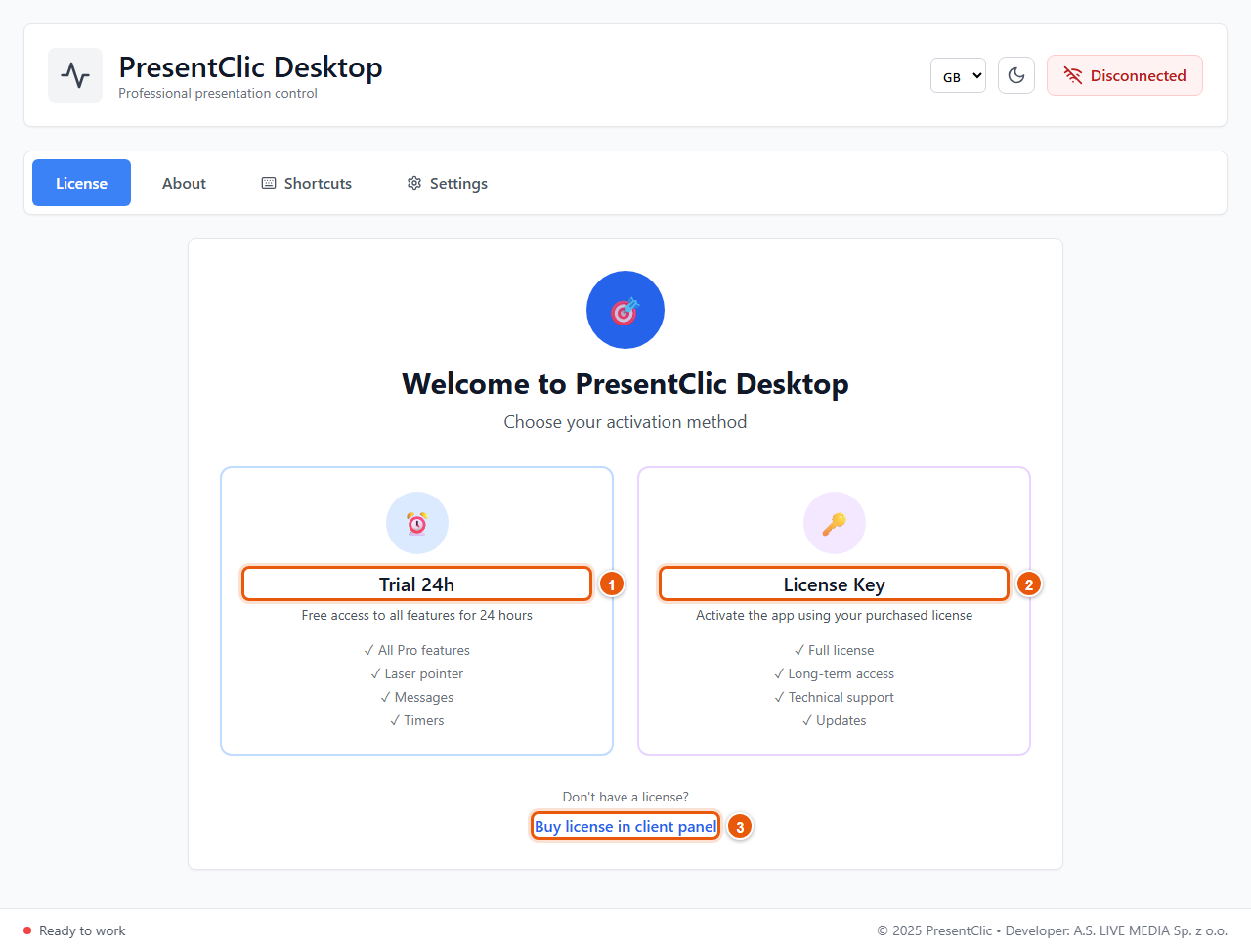
When the program has no license yet, the License tab opens with two options:
- 1 Trial 24h — try all features free for 24 hours. All you need is an e-mail address.
- 2 License Key — you already bought a license: enter its key.
- 3 Buy license in client panel — opens the client panel in your browser, where you can buy a license (see Client panel).
Result: After activation all tabs appear: Remote, About, My Sessions, Multi-Presenter, Shortcuts and Settings.
Tip
You can change the language (PL / GB) and the light/dark theme in the top-right corner already on this screen.
Getting startedChapter 2
License and trial
How to start the trial or a license, how long the program works offline and what the license messages mean.
What it is for
A license unlocks the program on your computer. Each license has a device limit — you can see it in the About tab and in the client panel.
Who can use it
Every user. You will find your license key in the client panel (Licenses).
Where to find it
The License tab (when the program is not activated) and the About tab (when it is).
Step 1
Free 24-hour trial
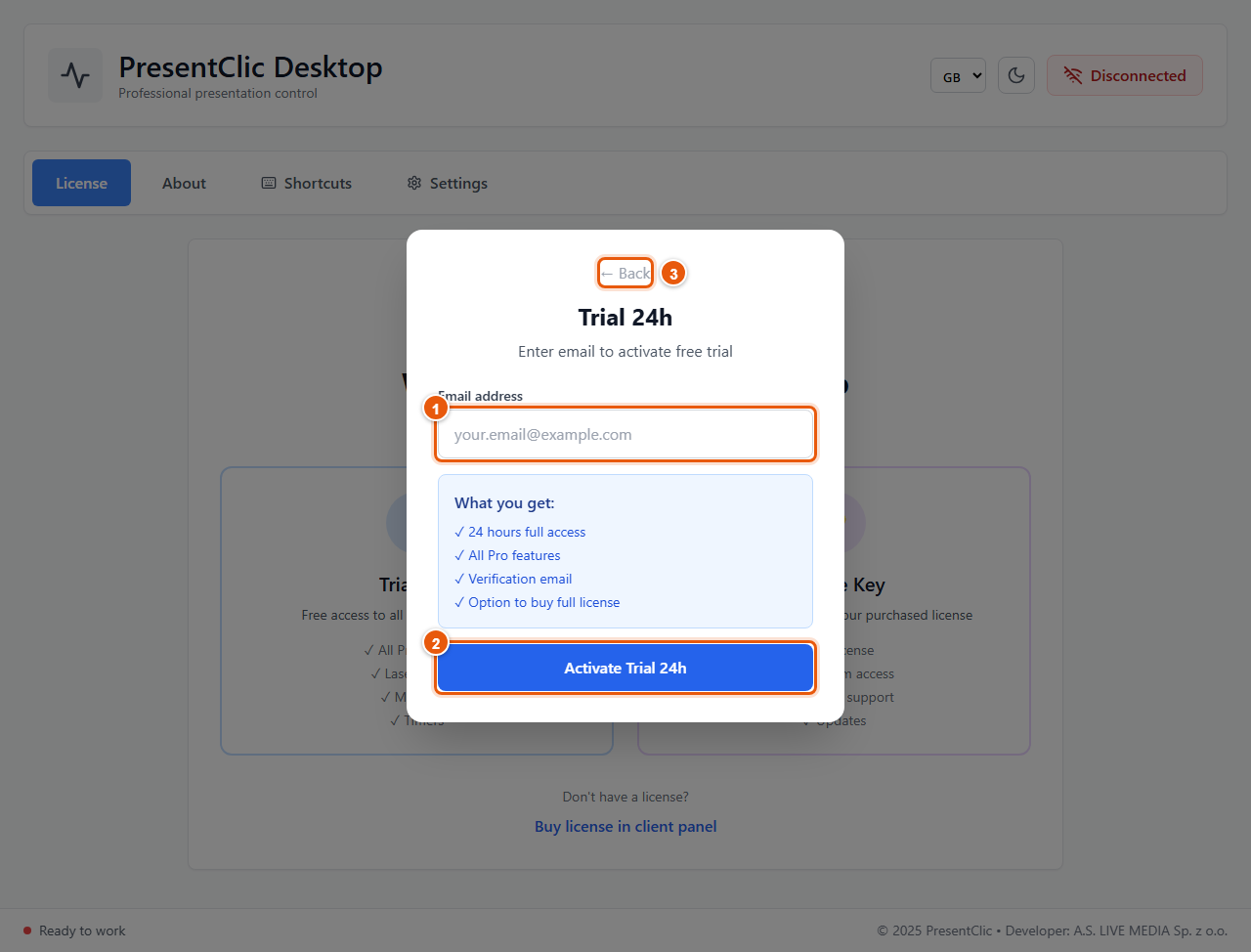
On the welcome screen click Trial 24h.
- 1 Enter your e-mail address.
- 2 Click Activate Trial 24h.
- 3 ← Back returns to the choice screen.
- The “What you get” box lists what the trial includes: 24 hours of full access, all Pro features, a verification e-mail and the option to buy a full license.
Result: The program works immediately with all features for 24 hours.
Note
The trial can be used once per computer. A second attempt shows “This device has already used trial version”.
The trial does not work for an address that already has an active license — use your license key instead.
After 24 hours the program asks for a license — buy one in the client panel.
Step 2
Activating a license key
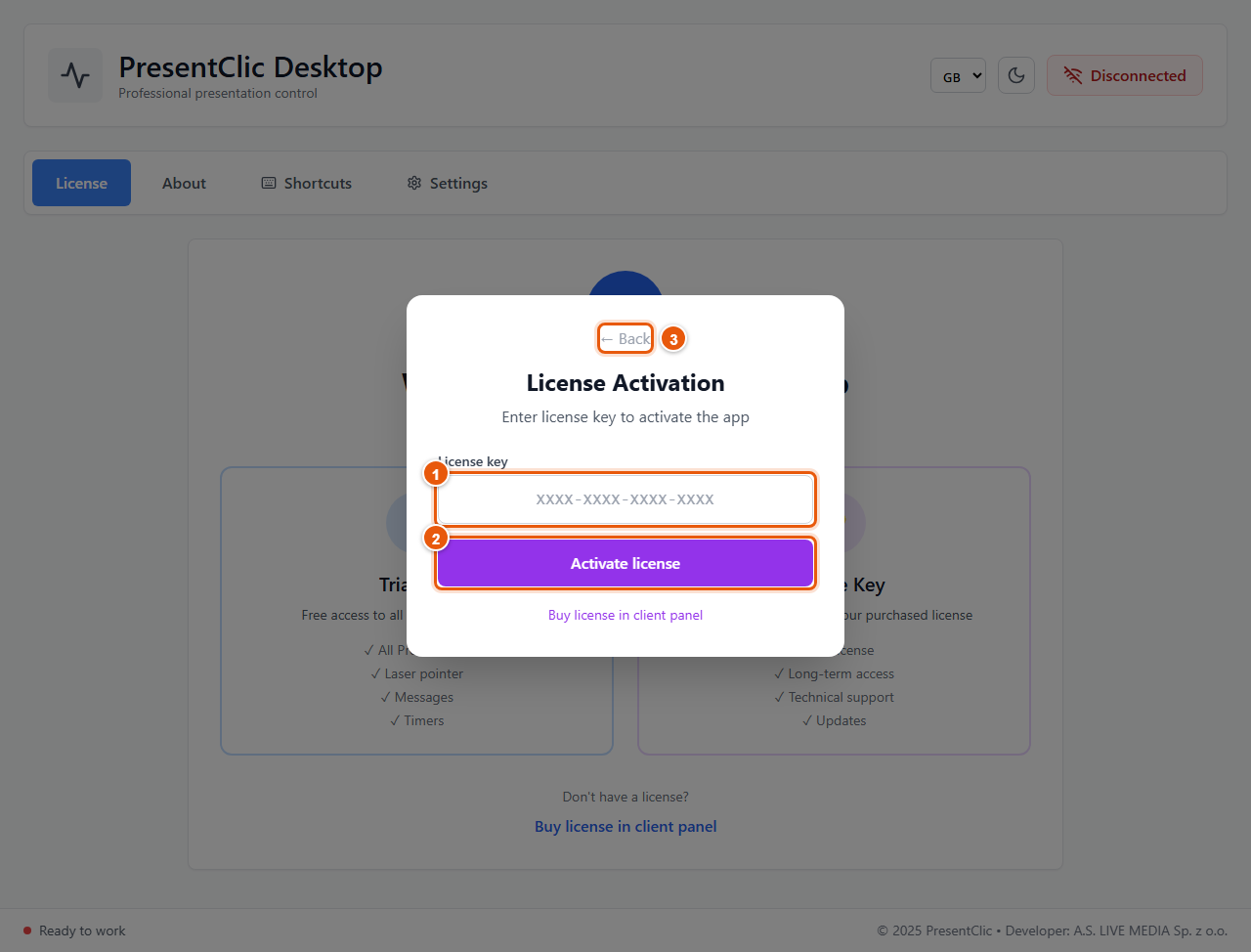
On the welcome screen click License Key.
- 1 Enter the license key in the format XXXX-XXXX-XXXX-XXXX (easiest: copy it from the client panel → Licenses).
- 2 Click Activate license.
- 3 ← Back returns to the choice screen. The Buy license in client panel link opens the shop.
Result: The program remembers the license on this computer — you do not need to enter it again.
Note
If you see the device-limit message, the license is already active on the maximum number of computers. Remove an old computer in the client panel (Devices → remove) or click Deactivate License on the old computer (next step).
Step 3
License information and deactivation
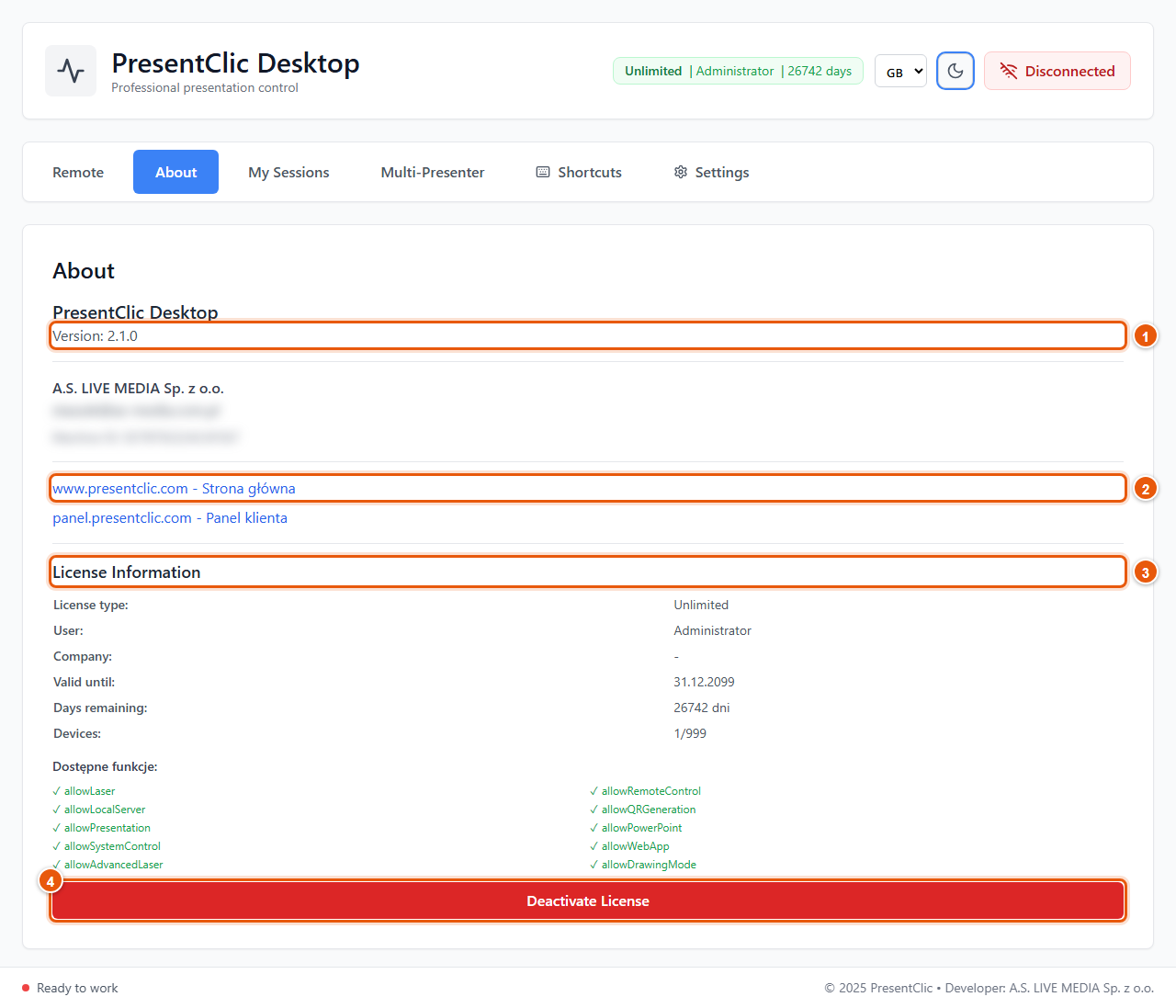
The About tab:
- 1 Program version — mention it when you contact support.
- 2 Links to www.presentclic.com and to the client panel panel.presentclic.com.
- 3 License Information: license type, user, company, expiry date, days remaining, number of devices (e.g. 1/3) and the list of available features.
- 4 Deactivate License — detaches the license from this computer and frees a slot for another one.
Result: The program asks “Are you sure you want to deactivate the license?”. After you confirm with Deactivate, the program locks and you can activate the license on another computer.
Tip
Changing computers? Deactivate the license on the old one first, then activate it on the new one. If you no longer have the old computer, remove it in the client panel (Devices).
Step 4
Working without internet
- The program checks the license online every minute. Without internet it keeps working for up to 7 days.
- During that time you see Offline mode: N day(s) left before the license must be verified online.
- After 7 days offline the program asks you to connect: “You have been offline for more than 7 days. Connect to the internet to verify your license.” Connect briefly — the license is verified automatically.
- The program also detects a wrong system clock (“Your system clock looks incorrect…”) — set the correct date and time and connect to the internet.
Tip
Going to an event with unreliable internet? Start the program once online before you leave — you then have the full 7 days. To control slides from the phone without internet use Offline mode (see Remote tab).
Good to know
License messages come from the server. What they mean:
“Your PresentClic subscription has ended…” — the subscription has ended; the program keeps working for 3 more days — renew it in the client panel.
“…license has expired” — renew it in the client panel. “…trial has ended” — the trial is over; buy a license.
“…license has been blocked / cancelled” — contact support@presentclic.com.
“This PresentClic license key is not valid” — the key does not exist; sign in again with the correct key.
“This computer was removed from your PresentClic license” — this computer was removed in the client panel; activate the license again if a slot is free.
Desktop programChapter 3
Remote tab
The main screen: create a session for the phone, decide what the remote may do and run the timers.
What it is for
In the Remote tab you connect your phone to the computer. The program creates a session with a 6-character code and a QR code — the phone that enters this code controls the presentation on this computer.
Who can use it
Everyone with an active license or trial.
Where to find it
The first tab — Remote. It opens automatically on start.
Step 1
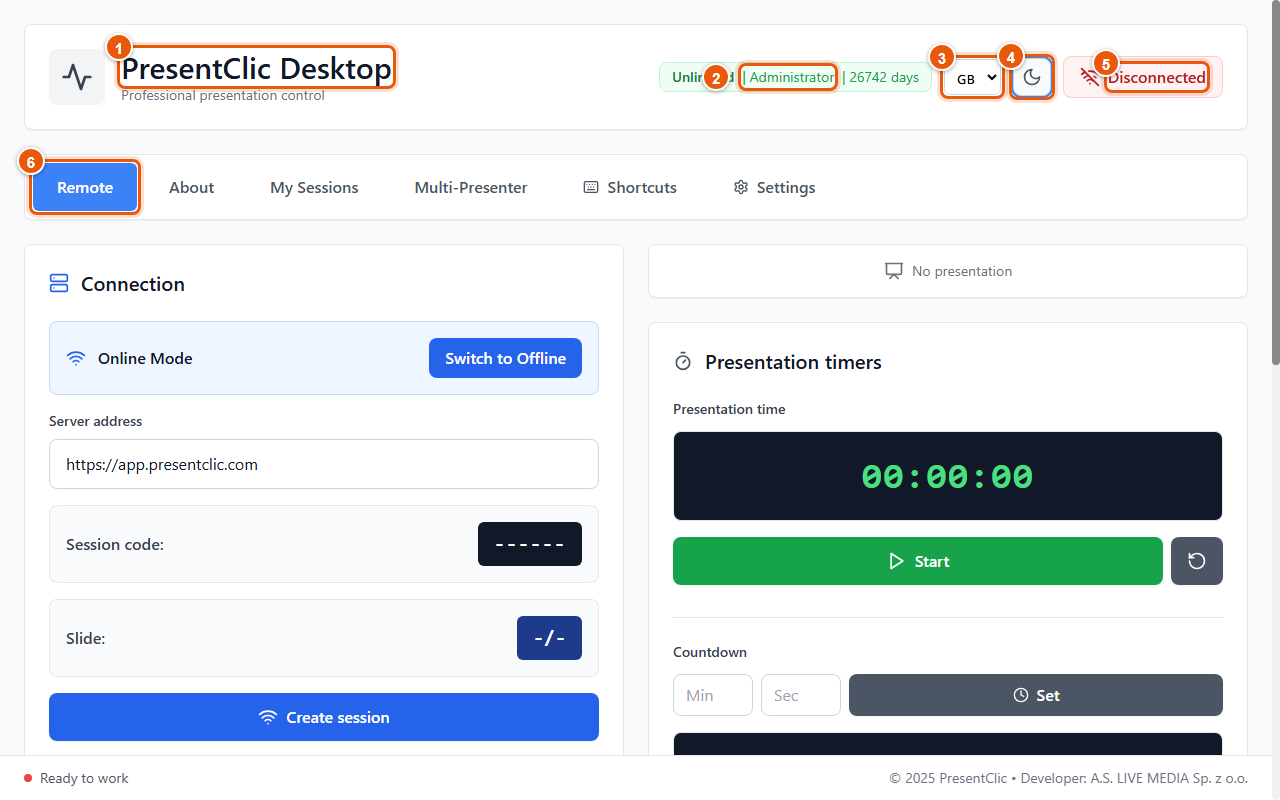
The main window
- 1 Program name — PresentClic Desktop.
- 2 License bar: license type, user and days until expiry.
- 3 Program language: PL (Polish) or GB (English). Changes immediately.
- 4 Light / dark theme switch.
- 5 Phone connection status: Disconnected or Connected.
- 6 Program tabs: Remote, About, My Sessions, Multi-Presenter, Shortcuts, Settings.
- At the bottom is the status bar, and above the timers the name of the open presentation (No presentation when none is open).
Step 2
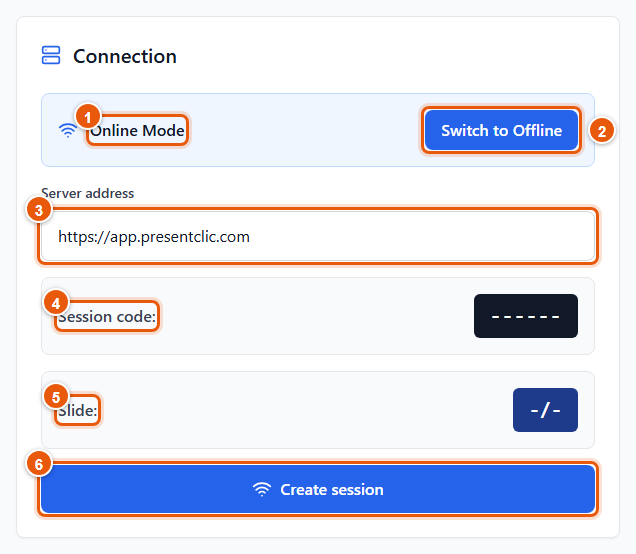
Connection — creating a session
- 1 Online Mode (default) — the phone connects over the internet via app.presentclic.com. Works on any network: Wi-Fi, mobile data, hotel.
- 2 Switch to Offline — local mode without internet: the computer acts as the server, and the phone must be on the same Wi-Fi network.
- 3 Server address — keep the default https://app.presentclic.com.
- 4 Session code — after you create a session, a 6-character code appears here (e.g. K7MP3Q).
- 5 Slide — current slide and total number of slides (when a presentation is open).
- 6 Create session — creates the session and shows its code and a QR code (“Scan QR code with your phone”).
Result: A QR code and the session URL appear under the button. Scan the QR code with your phone camera — the remote opens with the code filled in (see Phone remote). The button changes to Disconnect, which ends the session.
Tip
In Offline mode the address looks like http://192.168.x.x:8080/?code=… (your computer’s network address). The QR code contains it automatically — just scan it.
Note
Every new session gets a new code. If you want the same code every time (e.g. a printed QR code on stage), use My Sessions.
Step 3
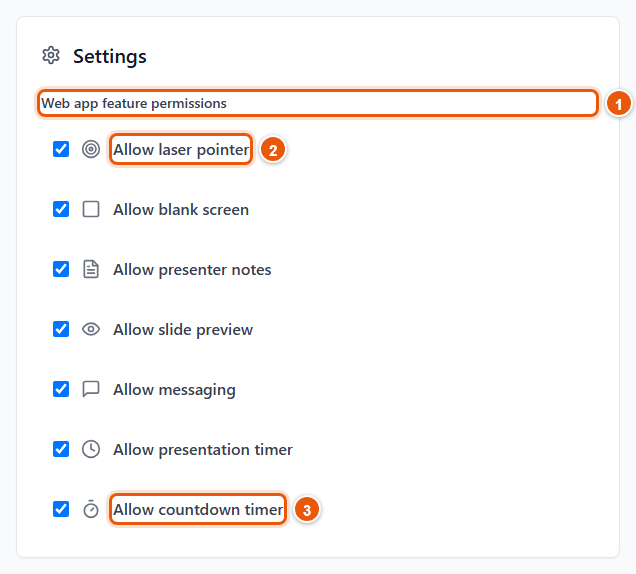
Remote permissions — what the phone may do
- 1 Web app feature permissions — choose which features the presenter’s phone shows.
- 2 Allow laser pointer — the Laser button on the phone. Likewise: black screen, presenter notes, slide preview, sending messages, presentation timer.
- 3 Allow countdown timer — the last item on the list.
- An unchecked feature disappears from the phone immediately, even during a running session. The Back / Forward buttons always work.
Tip
Each permission can also be toggled with a keyboard shortcut, e.g. Ctrl + Shift + L for the laser (see Keyboard shortcuts).
Step 4
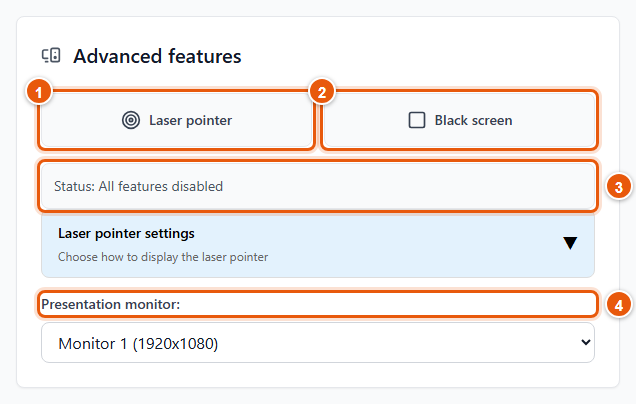
Advanced features — laser and black screen
- 1 Laser pointer — turns the laser on. Only then can the presenter open the laser pad on the phone and point at the screen.
- 2 Black screen — blanks the presentation (e.g. during a break). Click again to restore it.
- 3 Status — which features are currently on.
- 4 Presentation monitor — choose the screen that shows the slideshow (projector). The laser appears there.
- Expand Laser pointer settings to choose the look: Red arrow (mouse cursor and PowerPoint laser), Red dot (independent dot, does not move the cursor) or Drawing/highlighting (line width 1–10, transparency 10–100%). Confirm with Apply settings.
Step 5
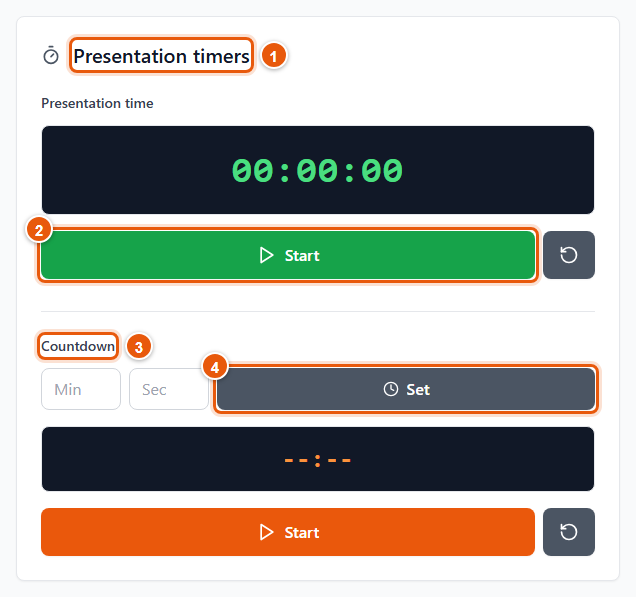
Presentation timers
- 1 Presentation time — a stopwatch counting up from 00:00:00.
- 2 Start starts the stopwatch (the grey button next to it resets it).
- 3 Countdown — a timer counting down to the end of the talk.
- 4 Enter minutes and seconds, click Set, then the orange Start.
Result: The presenter sees both timers on the phone. When the countdown runs out, the overtime is shown in red as +MM:SS.
Step 6
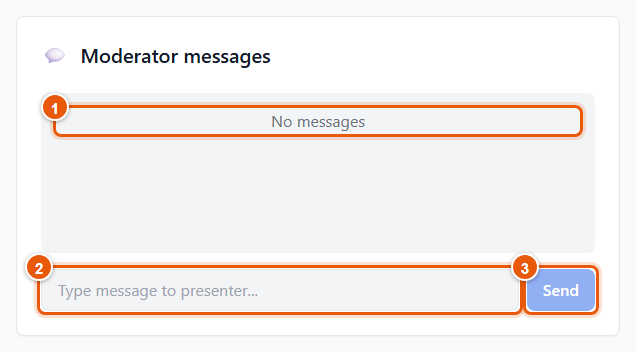
Moderator messages
- 1 Message list (No messages at first). Messages sent by the presenter from the phone also appear here.
- 2 Type a message to the presenter, e.g. “5 minutes left”.
- 3 Send — the message appears on the presenter’s phone immediately.
Tip
A discreet way for the moderator or the tech crew to signal the presenter: “Slow down”, “Louder”, “Questions from the audience”.
Step 7
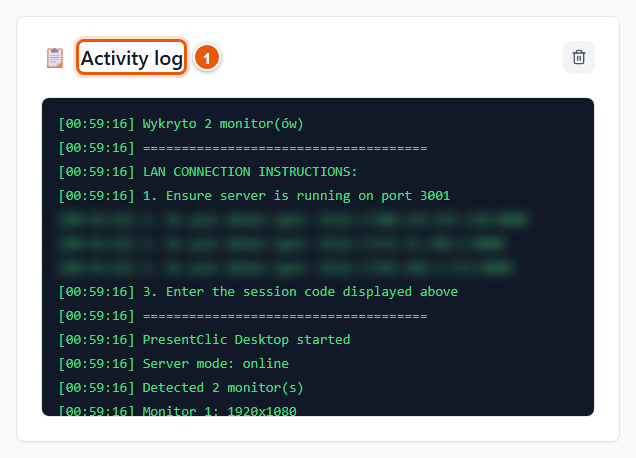
Activity log
- 1 Activity log — what the program is doing: detected monitors, connection mode, created sessions, commands from the phone.
- The bin icon in the top-right corner clears the log.
Tip
If something does not work, take a screenshot of the log and send it to support — it is the fastest way to a solution.
Desktop programChapter 4
My Sessions — permanent codes
Sessions created in the client panel keep their code — print the QR code once and use it at every event.
What it is for
A regular session gets a new code every time. A permanent session keeps its code: ideal for printing on the agenda, the lectern or the conference schedule.
Who can use it
The license owner. Permanent sessions are created in the client panel (Sessions).
Where to find it
The My Sessions tab.
Step 1
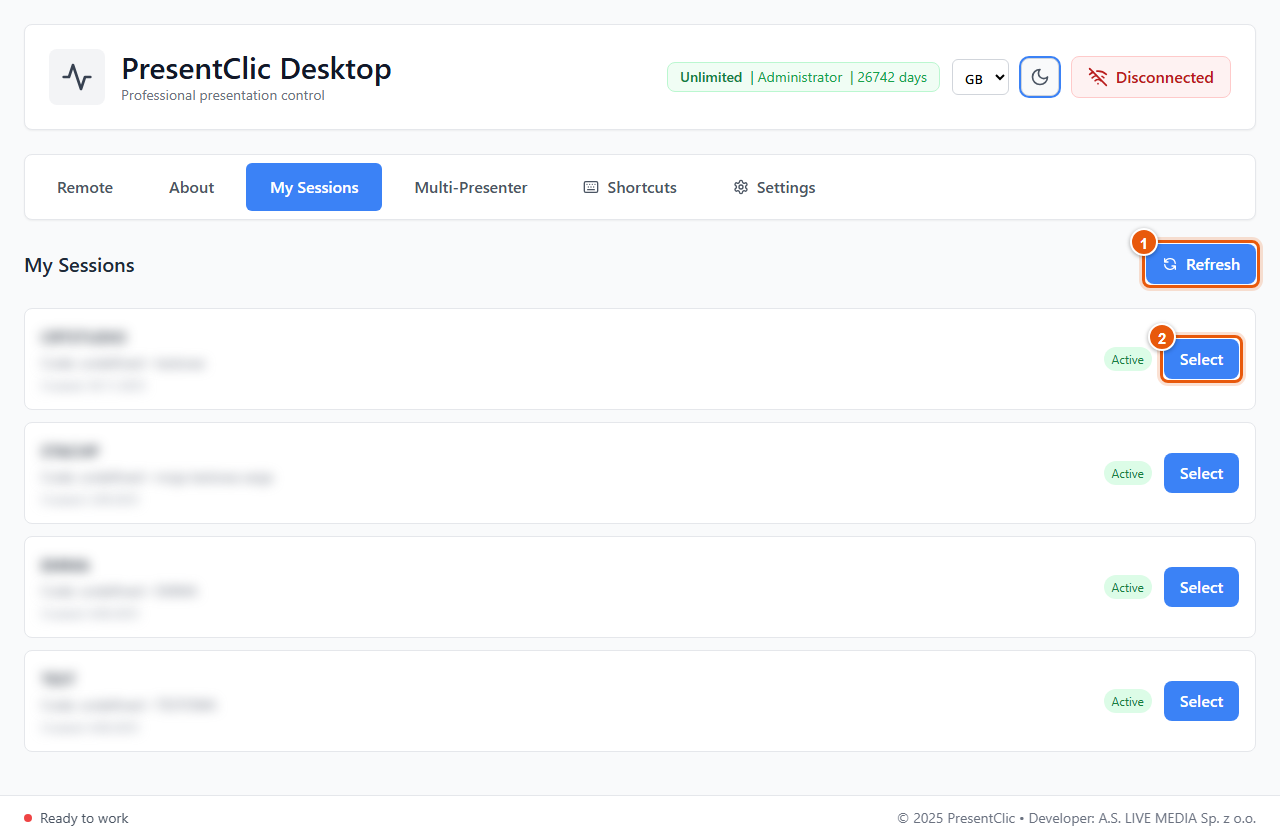
List of permanent sessions
- Each item is one permanent session: name, code and creation date, marked Active.
- 1 Refresh — reloads the list from the client panel (e.g. after adding a new session).
- 2 Select — starts this session.
Result: The program switches to Online mode, creates the session with this permanent code, shows its QR code and jumps to the Remote tab. The phone connects with the same code as always.
Tip
Create a new permanent session in the client panel: Sessions → create a new session. You can enter your own code (4–20 capital letters and digits, e.g. STAGE1) or leave it empty to generate one. There you can also download the QR code and send an e-mail invitation.
Desktop programChapter 5
Multi-Presenter
A conference with many talks: each speaker has their own session, and the program switches between them manually or by schedule.
What it is for
Several people speak at one conference, each with their own phone. Multi-Presenter arranges their permanent sessions into a schedule and switches between them — manually or automatically at the planned time.
Who can use it
The license owner. Talks are sessions from My Sessions — create them in the client panel first.
Where to find it
The Multi-Presenter tab.
Step 1
Conference schedule
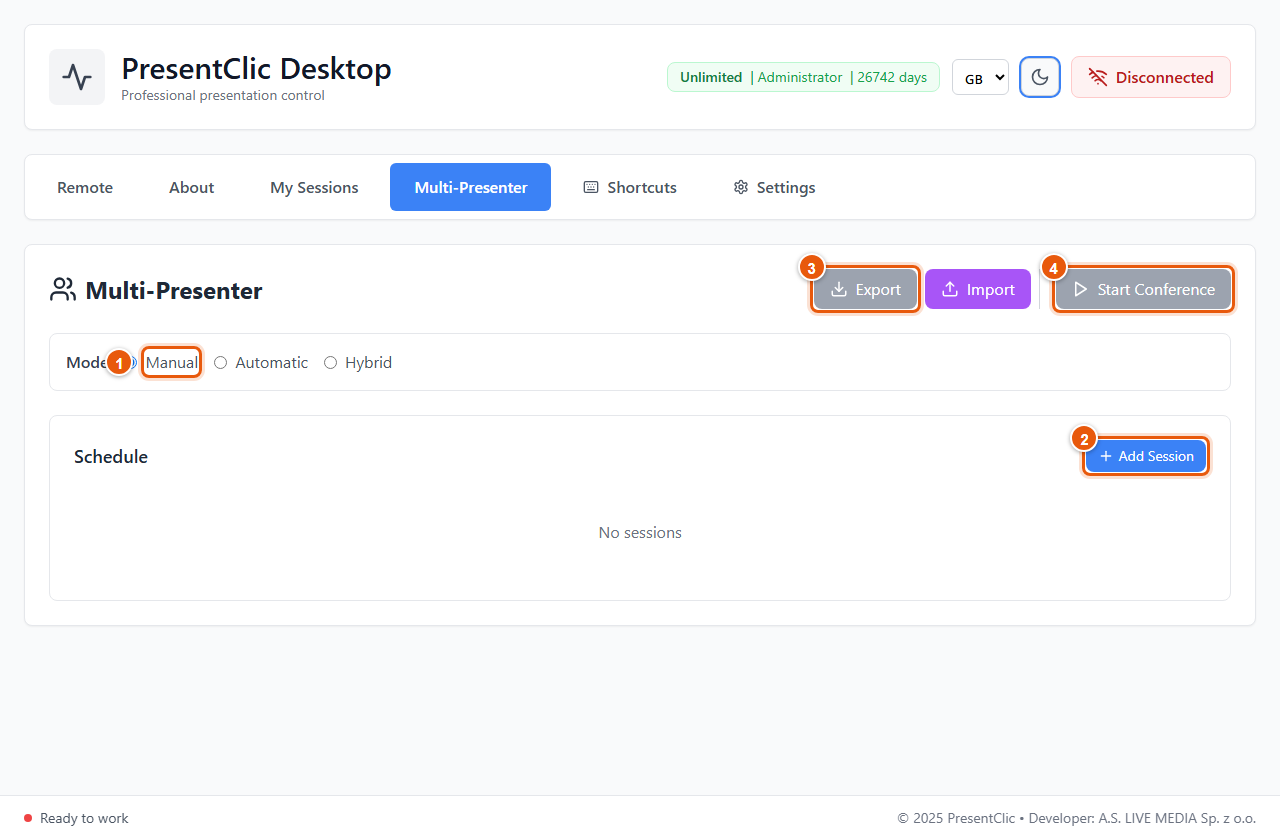
- 1 Switching mode: Manual (default) — you switch yourself using the quick-switch panel; Automatic — the program switches talks at the times in the schedule; Hybrid — follows the schedule but you can switch manually.
- 2 Add Session — pick a session from My Sessions and set: start time, duration (30 min by default), automatic switching, warning before the end, allow extension, notes.
- 3 Export / Import — save and load the schedule as a .clic file (e.g. prepared on another computer).
- 4 Start Conference — starts the first talk. The button becomes active once the schedule has sessions.
Result: The program activates the first speaker’s session (like Select in My Sessions). During the conference you can extend a talk with +5 min / +10 min and end the conference with the end button.
Tip
In Automatic and Hybrid modes the program warns you when 5 minutes or less remain in a talk.
Note
An empty schedule cannot be exported.
Desktop programChapter 6
Keyboard shortcuts
The moderator at the computer turns remote features on and off without hunting for them with the mouse.
What it is for
Keyboard shortcuts toggle remote permissions (laser, black screen, notes, preview, messages, timers) and open the settings — they work while the PresentClic window is active.
Who can use it
Every user of the program.
Where to find it
The Shortcuts tab.
Step 1
List and editing of shortcuts
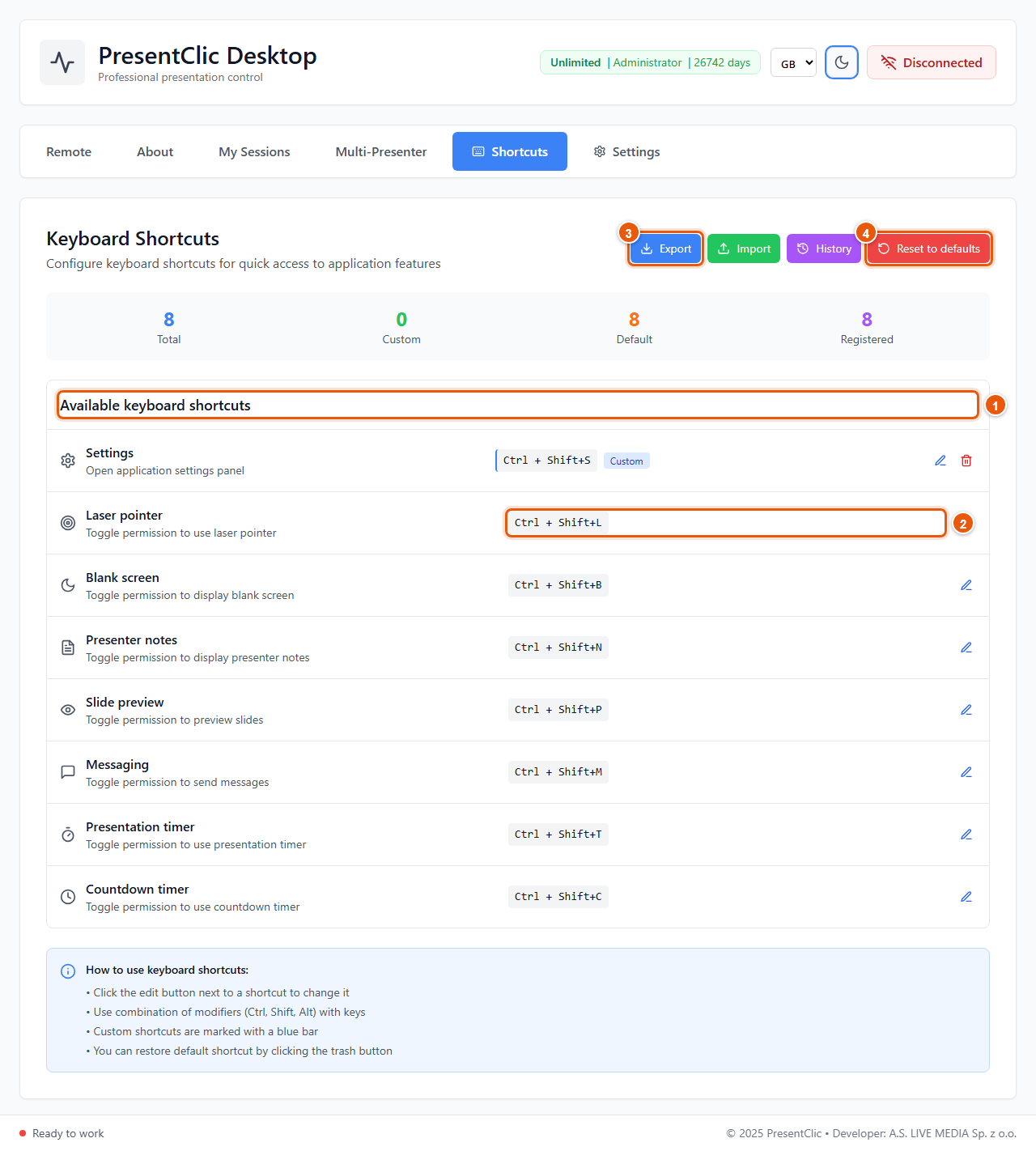
- At the top are counters: total shortcuts, how many you changed (custom), how many are default.
- 1 Available keyboard shortcuts — each item has a name, a description and a key combination.
- 2 Example: Laser pointer — Ctrl + Shift + L. Defaults: L laser, B blank slides (black screen), N notes, P slide preview, M messages, T presentation timer, C countdown timer — always with Ctrl + Shift.
- 3 Export saves your shortcuts to a file (Import loads them on another computer, History shows changes).
- 4 Reset to defaults — restores all factory shortcuts.
Result: To change a shortcut, click the pencil next to it and press the new combination (with Ctrl, Shift or Alt). A changed shortcut has a blue bar and a Custom label; the bin icon restores the default.
Desktop programChapter 7
Settings
Choose which presentation program PresentClic controls and connect it to vMix.
What it is for
PresentClic controls one presentation program at a time. Choose it here; streaming crews can also enable automatic scene switching in vMix.
Who can use it
Every user of the program.
Where to find it
The Settings tab.
Step 1
Presentation system
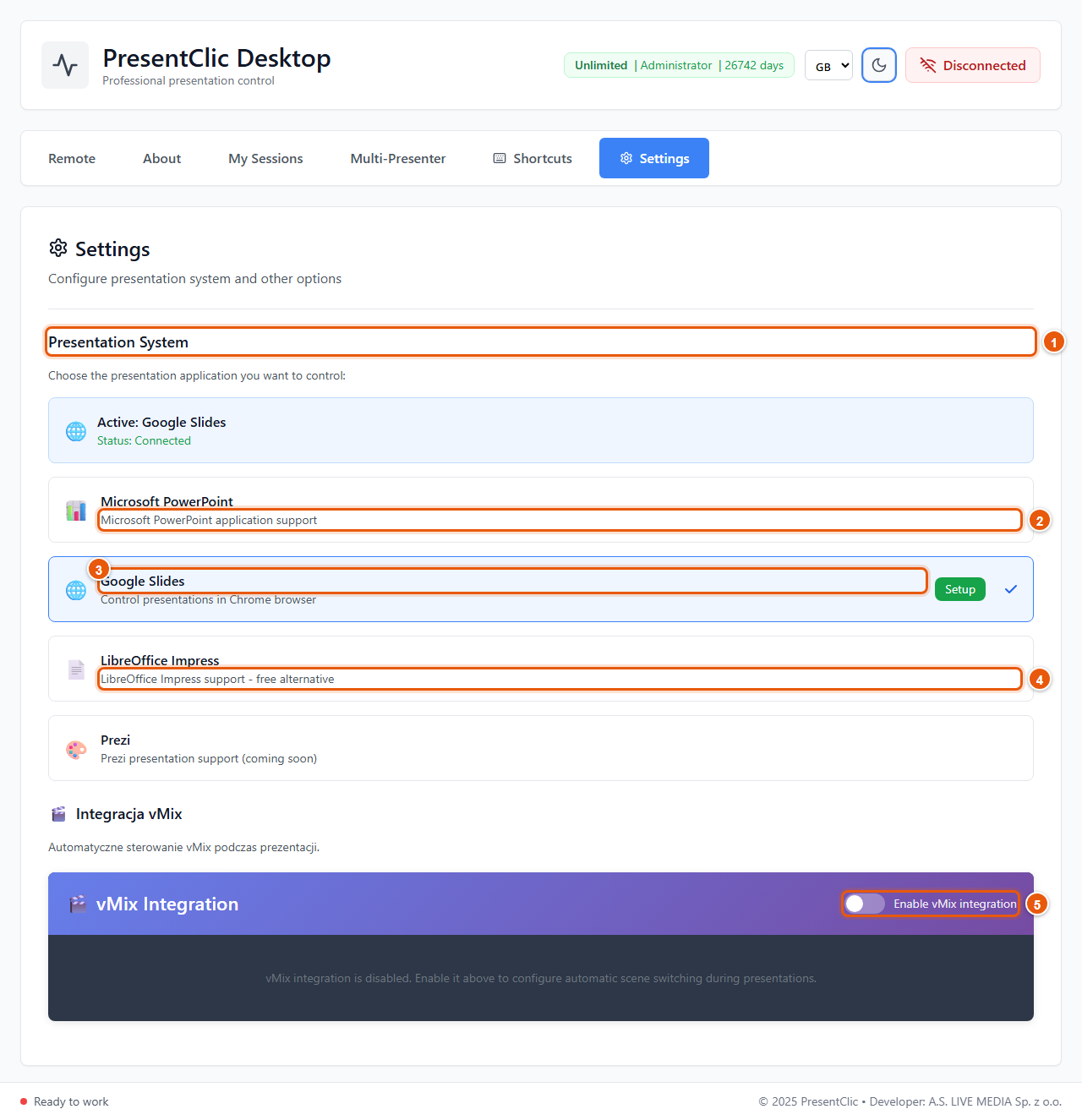
- 1 Presentation System — the blue box shows the active program and its status. Click another item to switch.
- 2 Microsoft PowerPoint — full support: slides, notes, preview, slide number, laser, black screen.
- 3 Google Slides — presentations in the browser. Requires a one-time browser extension install — the Setup button (next step).
- 4 LibreOffice Impress (Windows only) — free alternative: slide navigation, starting the show and black screen. Notes, preview, slide number and laser are not available.
- 5 vMix Integration (Windows only) — turn on Enable vMix integration to configure automatic scene switching.
- Prezi — coming soon.
Tip
On a Mac this tab looks different (automatic detection, Keynote) — see macOS differences.
Step 2
Google Slides — installing the extension
- Click Setup next to Google Slides and follow the window:
- 1. Open Extension Folder — the program shows the folder with the extension.
- 2. Chrome: go to chrome://extensions/, enable Developer mode, click Load unpacked and select that folder. Edge: edge://extensions/ — the same. Firefox: about:debugging → This Firefox → Load Temporary Add-on → the manifest.json file.
- 3. Test Connection — confirms the browser can see PresentClic.
Tip
PresentClic must be running. If the test fails, refresh the Google Slides tab.
Step 3
vMix — automatic scenes (Windows only)
- After enabling the integration you configure these tabs:
- Connection — vMix server address (default 127.0.0.1), API port (8088), Test Connection.
- Inputs — vMix input numbers: main camera, screen capture, alternative camera, logo/overlay.
- Automation — e.g. Switch to screen on first slide, Switch to camera on last slide, switching delay and smooth transitions.
- Recording — automatic start and stop of recording (set format and location in vMix first).
Step 4
Dark theme
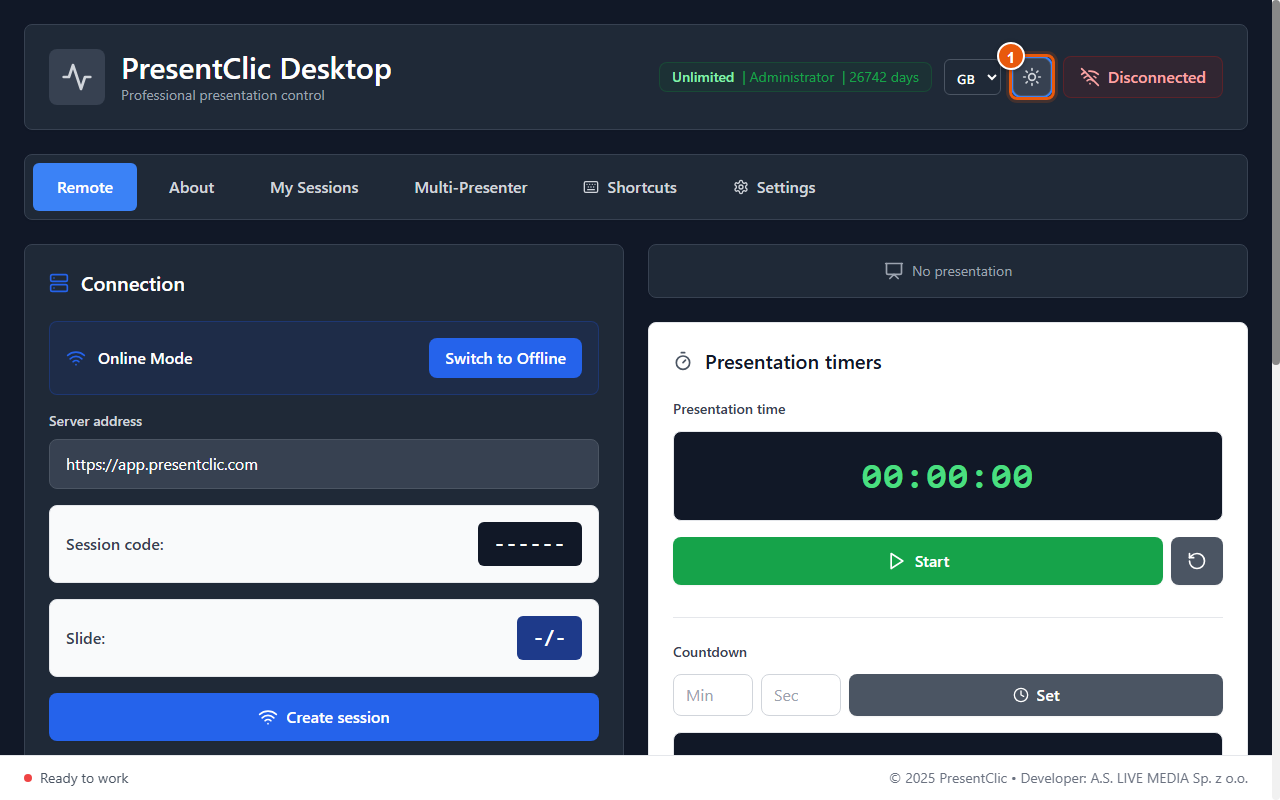
- 1 The theme button in the header switches between light and dark — handy in a dark room or control booth.
Desktop programChapter 8
Updates
Since version 2.1.0 PresentClic downloads new versions by itself and asks when to install them.
What it is for
Automatic updates keep you on the latest fixes and features without downloading installers by hand.
Who can use it
Every user of version 2.1.0 or later (Windows and macOS).
Where to find it
Runs in the background. Check the version number in the About tab.
Step 1
How it works
- One minute after start, and then every 4 hours, the program checks for a new version.
- A new version downloads in the background — you can keep working.
- When it is ready, the PresentClic update window appears: “PresentClic X.Y.Z is ready to install.”
- Install now — the program closes, installs the update and restarts.
- When I quit — the update installs when you close PresentClic yourself.
Tip
During a presentation choose When I quit — the program never restarts on its own, so nothing interrupts your talk.
Note
Versions older than 2.1.0 have no automatic updates — download and install 2.1.0 once by hand from www.presentclic.com. Your license and settings are kept.
Phone remoteChapter 9
Phone remote
The remote page opens in your phone’s browser — no app to install.
What it is for
Your phone becomes the remote: change slides, see notes and the next slide, the talk timer and messages from the moderator, and steer the laser pointer with your finger.
Who can use it
Anyone who knows the session code. The features visible on the phone are set on the computer (remote permissions).
Where to find it
Scan the QR code from the program, or open app.presentclic.com and enter the session code.
Step 1
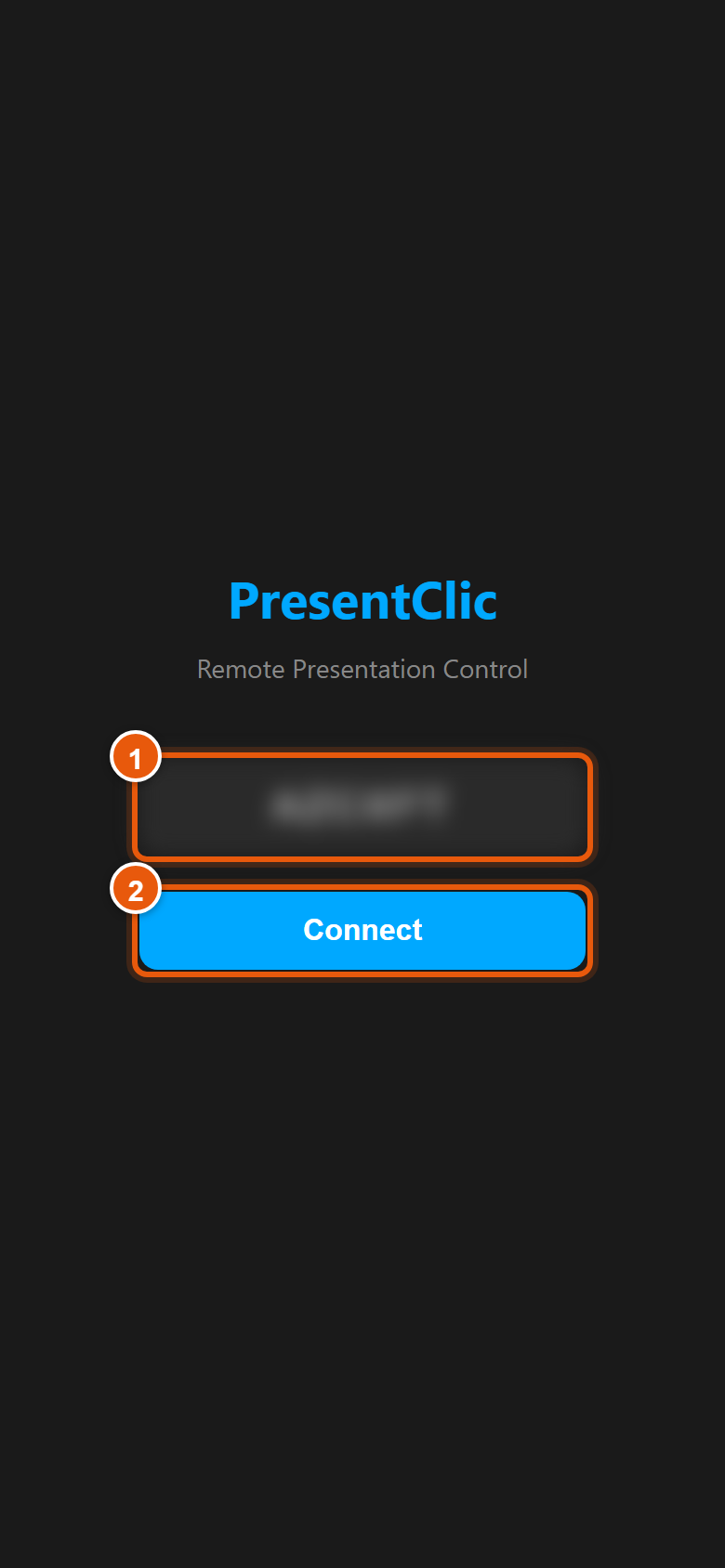
Joining a session
- 1 Session code — filled in automatically after scanning the QR code. Manually: type the 6 characters shown in the program.
- 2 Connect.
Result: The remote screen opens, and the program on the computer shows Connected.
Tip
Add the page to your home screen (Safari: Share → Add to Home Screen; Chrome: menu ⋮ → Add to Home screen) — the remote then opens full-screen like an app.
Step 2
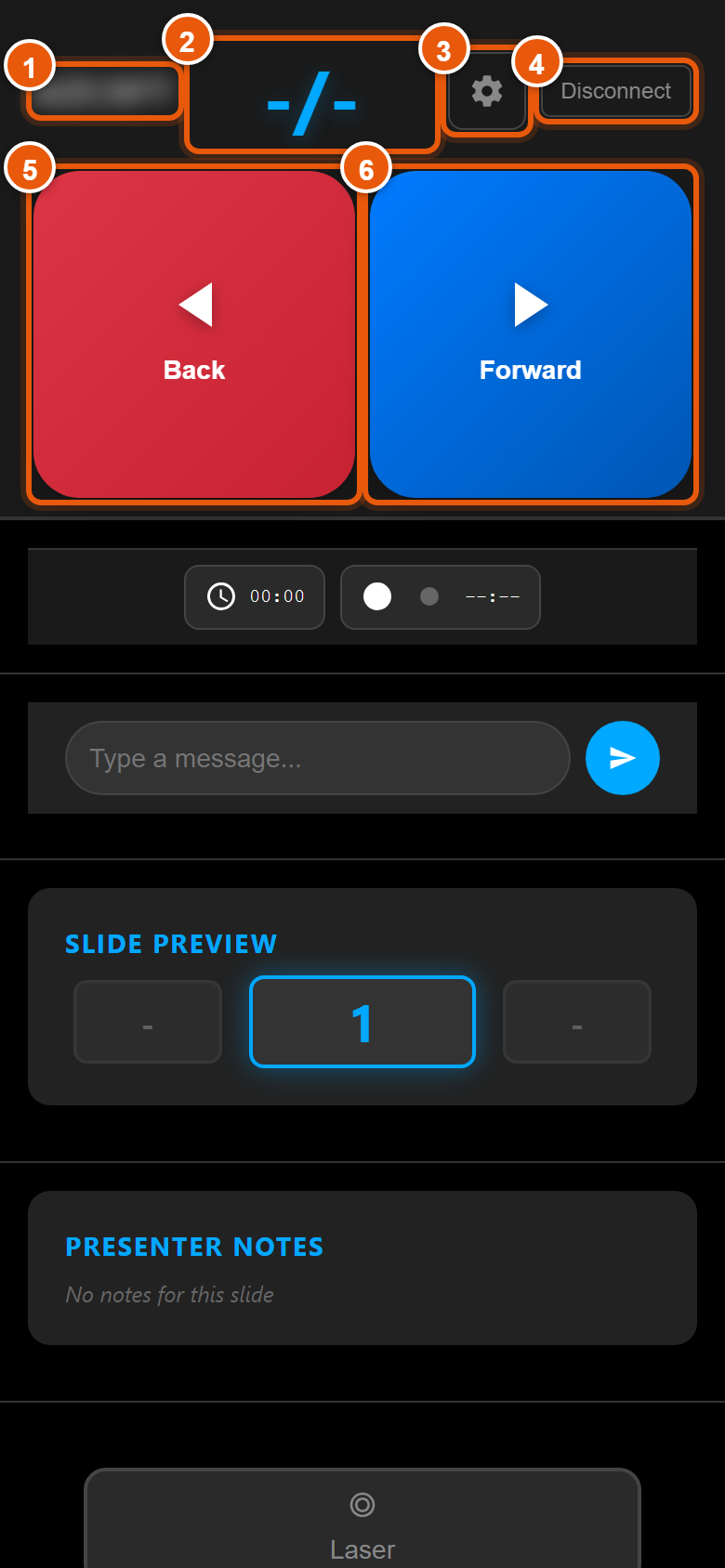
Changing slides
- 1 Session — the code you are connected to.
- 2 Slide — current slide / total slides (e.g. 5/24). -/- means no presentation is open.
- 3 Remote settings (gear icon).
- 4 Disconnect — ends the phone connection.
- 5 Back — previous slide.
- 6 Forward — next slide (or next animation).
Result: Each tap is confirmed by a short vibration.
Note
The presentation must be open in the presentation program, ideally already in slideshow mode (PowerPoint: F5).
Step 3
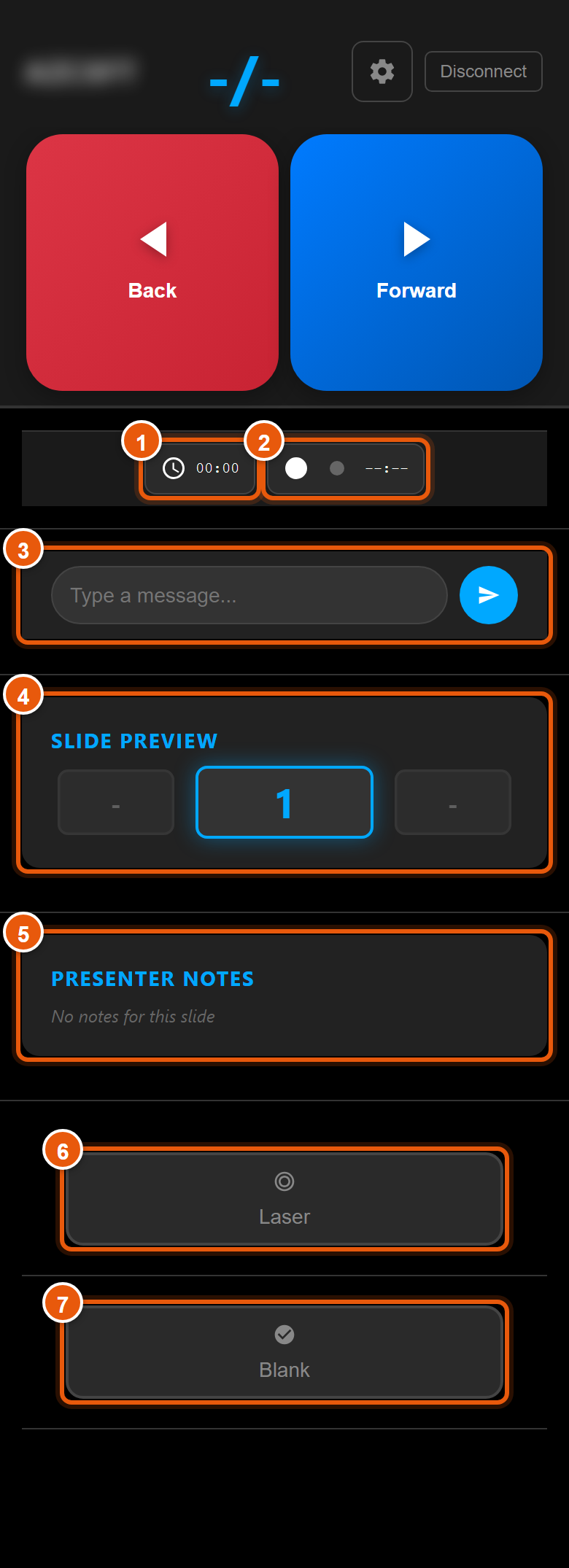
Timers, messages, preview and notes
Scroll down — below the buttons are extra features (only those allowed on the computer are shown):
- 1 Presentation time — tap to start or stop the stopwatch.
- 2 Countdown — tap to start or pause the countdown. When time runs out it shows +MM:SS in red.
- 3 Message — type and tap the arrow: the message goes to the moderator at the computer. Messages from the moderator appear here too.
- 4 Slide preview — previous, current and next slide.
- 5 Presenter notes — PowerPoint notes for the current slide.
- 6 Laser — opens the laser pad (next step).
- 7 Blank — blanks / restores the projector image.
Step 4
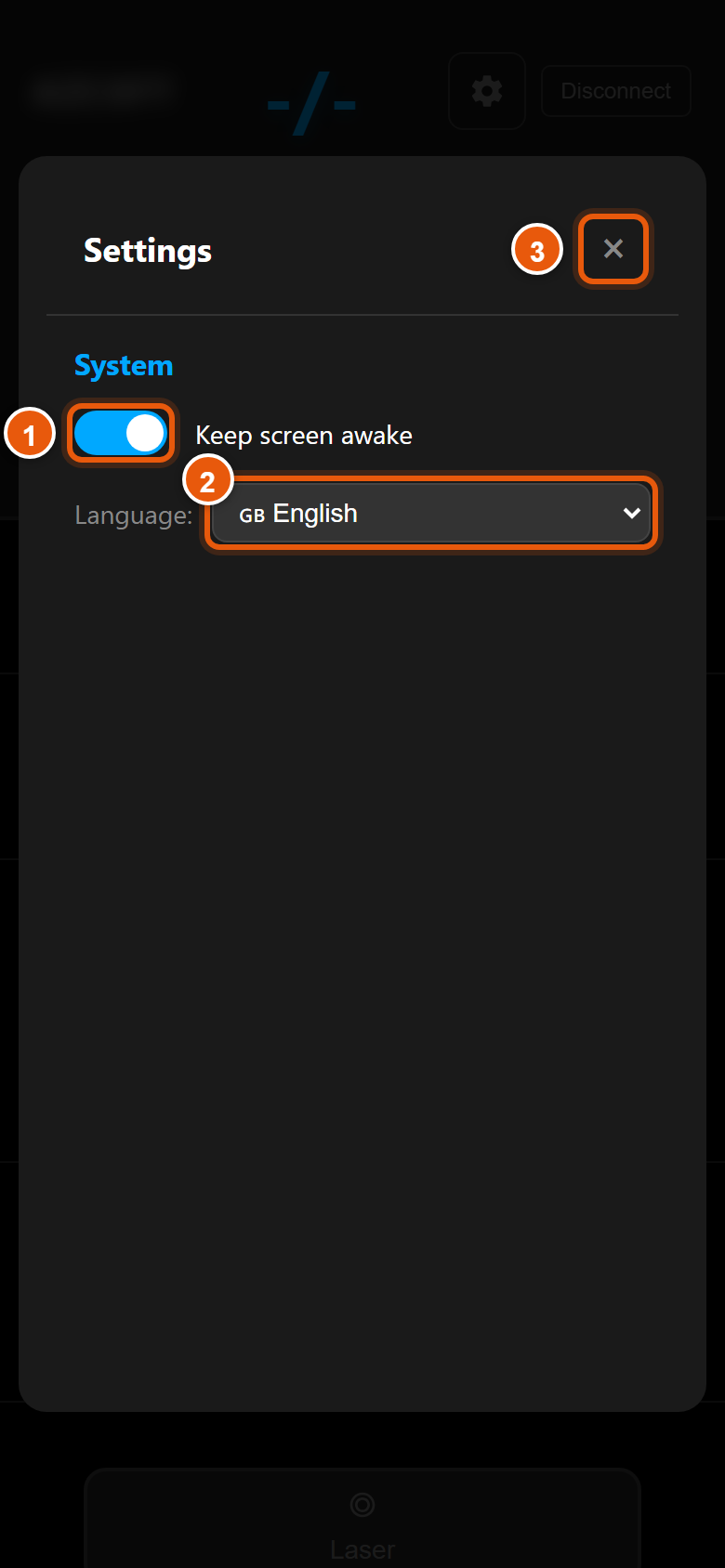
Remote settings
- 1 Keep screen awake — the phone screen will not turn off during your talk.
- 2 Remote language — 14 languages.
- 3 × closes the settings.
Step 5
Laser pointer with your finger
First turn the laser on at the computer (Laser pointer in the Remote tab), then tap Laser on the phone.
- 1 Touch pad — move your finger and the pointer moves on the projector screen. In drawing mode your finger draws a line; a double tap clears the drawing.
- 2 × closes the laser pad and returns to the remote.
Note
If the phone says the laser must be enabled in the desktop app, the laser is off on the computer. If it says the laser is not available, the moderator has unchecked the laser permission.
Good to know
In Offline mode the phone and the computer must be on the same Wi-Fi network, and the remote address is the computer’s address (e.g. http://192.168.1.20:8080). The easiest way is to scan the QR code from the program.
Account and licenseChapter 10
Client panel
panel.presentclic.com — buy and renew your license, manage computers and permanent sessions.
What it is for
The client panel is your PresentClic account in the browser: licenses and their keys, computers assigned to a license, permanent session codes, payments, invoices and billing details.
Who can use it
The account owner (e-mail and password). Create the account yourself, or it is created with the trial.
Where to find it
panel.presentclic.com — also from the program: About tab → panel.presentclic.com link.
Step 1
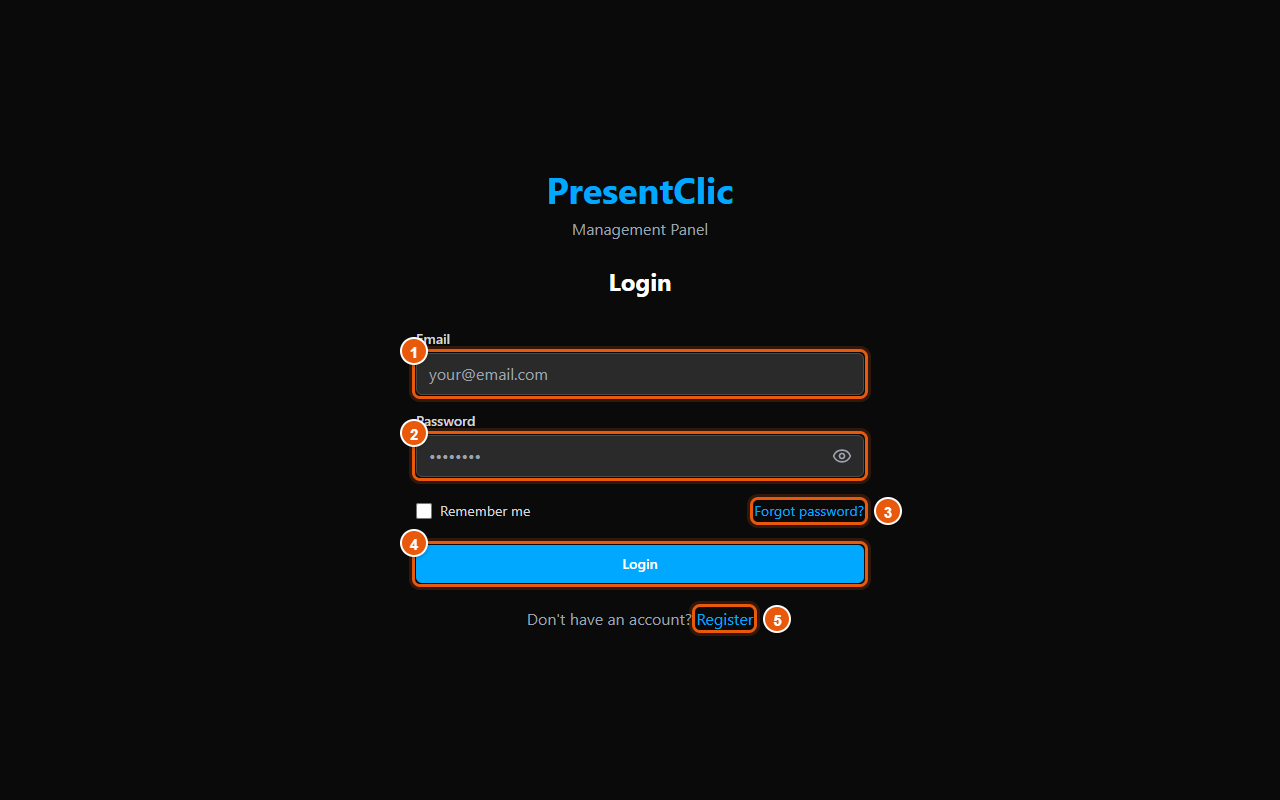
Signing in
- 1 Email — your account address.
- 2 Password (the eye icon shows what you typed). Tick Remember me on your own computer.
- 3 Forgot password? — sends a link to set a new password.
- 4 Login.
- 5 Register — you do not have an account yet (next step).
Step 2
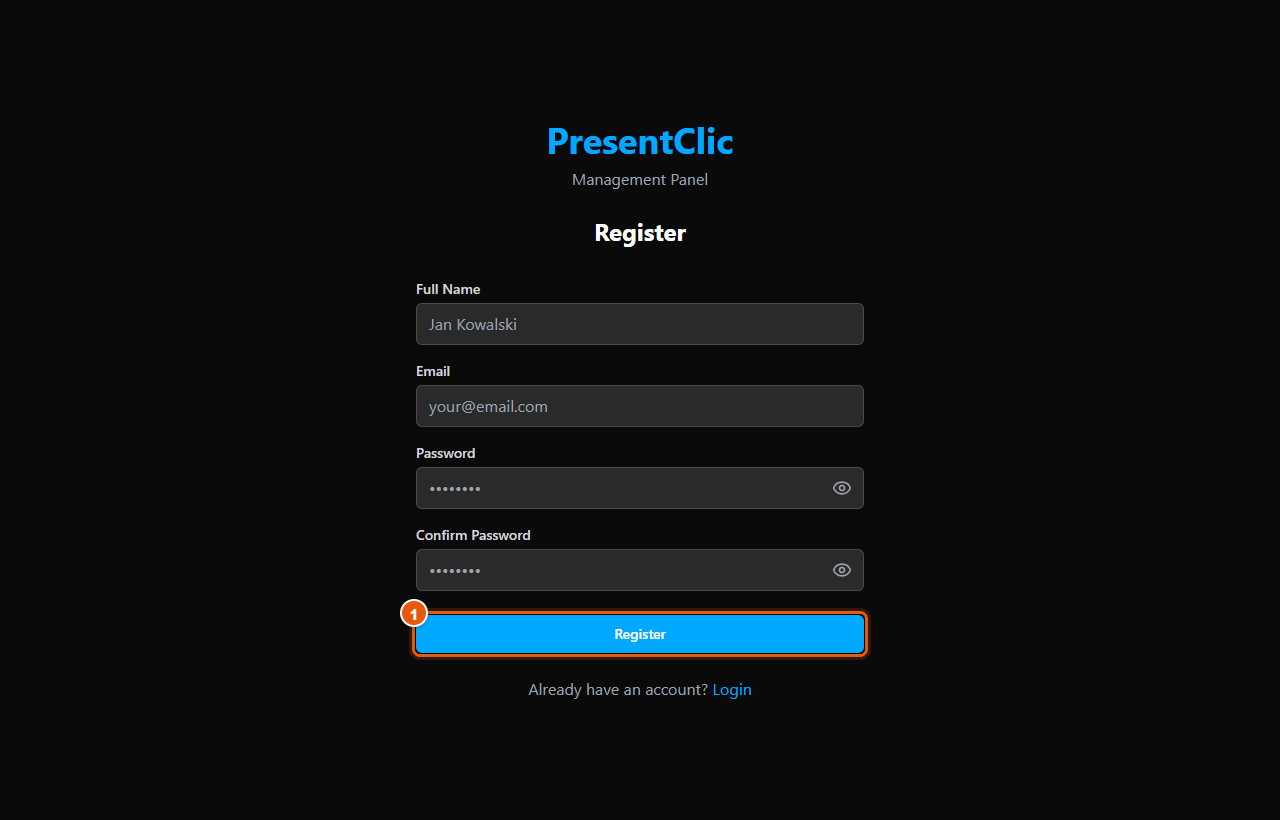
Creating an account
- Enter your full name, e-mail, password and confirm the password.
- 1 Register — the account is ready; sign in and buy a license.
Step 3
Dashboard and buying a license
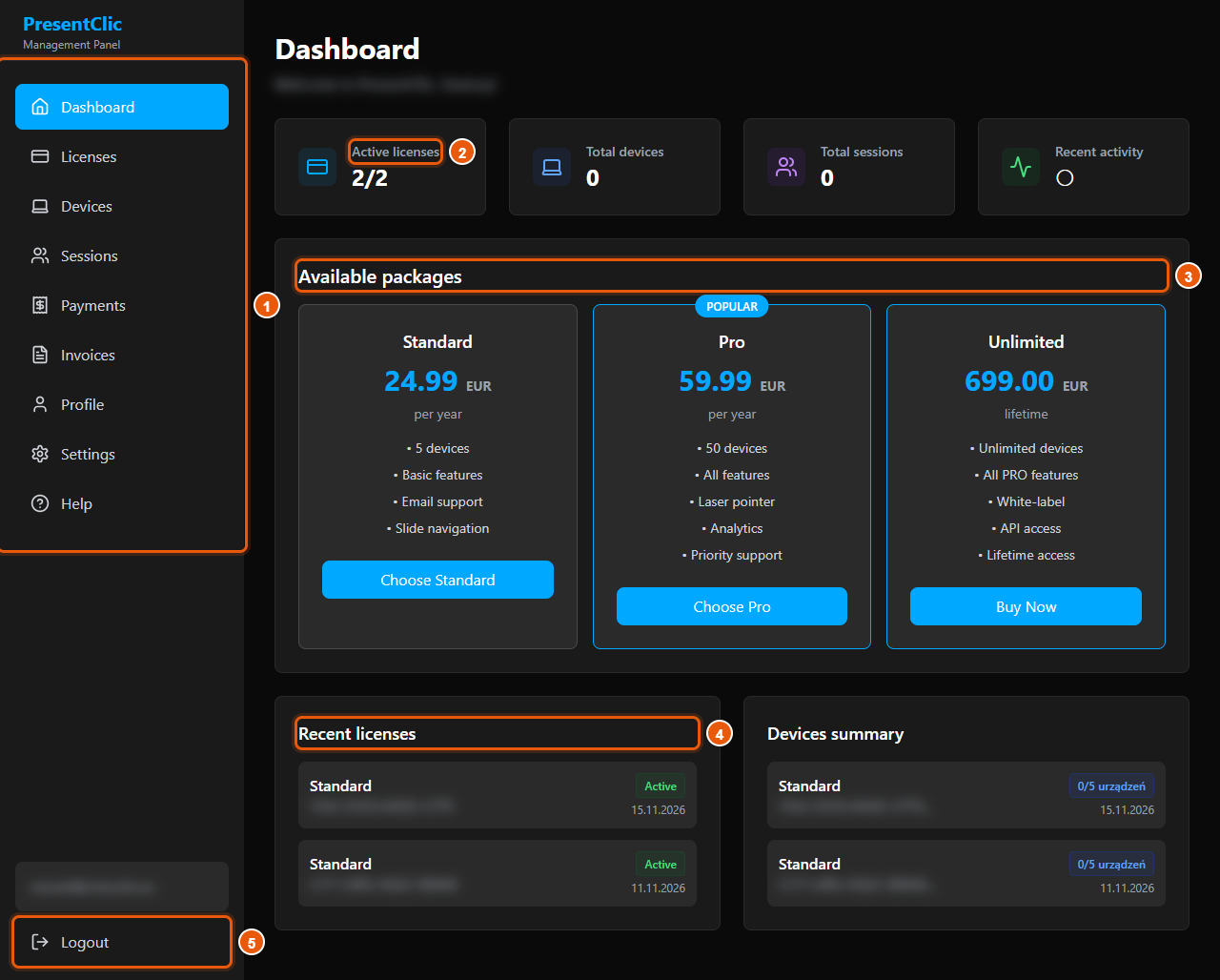
- 1 Panel menu: Dashboard, Licenses, Devices, Sessions, Payments, Invoices, Profile, Settings, Help.
- 2 Counters: active licenses, computers, sessions and recent activity.
- 3 Available packages — Standard, Pro and Unlimited with price, number of computers and features. Click the button under the package you want.
- 4 Recent licenses — your licenses with expiry dates; next to it a devices summary (e.g. 0/5 devices).
- 5 Logout.
Result: After choosing a package, select the billing period and continue to payment — card payments are handled by the secure Stripe gateway. After payment the license appears under Licenses.
Tip
Fill in your billing details in Profile before buying — the invoice is then issued to your company straight away.
Step 4
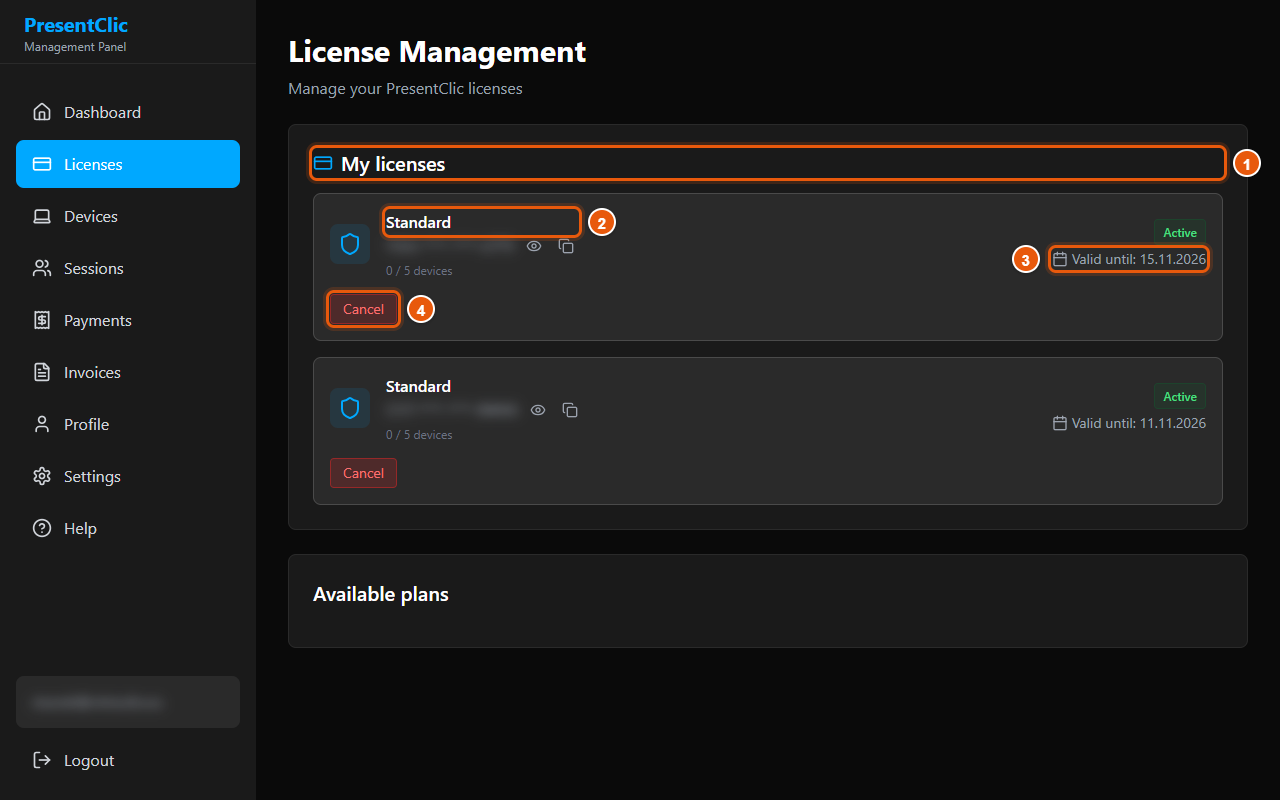
Licenses
- 1 My licenses — the list of your licenses.
- 2 Package name, below it the license key (the eye icon reveals the full key, the icon next to it copies it) and the number of computers (e.g. 0 / 5 devices).
- 3 Valid until — end of the period, next to it the Active status.
- 4 Cancel — ends the subscription. The license keeps working until the end of the paid period, then it is not renewed. You receive a confirmation e-mail.
Result: Paste the copied key into the program: welcome screen → License Key (License and trial).
Note
Licenses without a subscription (e.g. a trial) cannot be cancelled.
Step 5
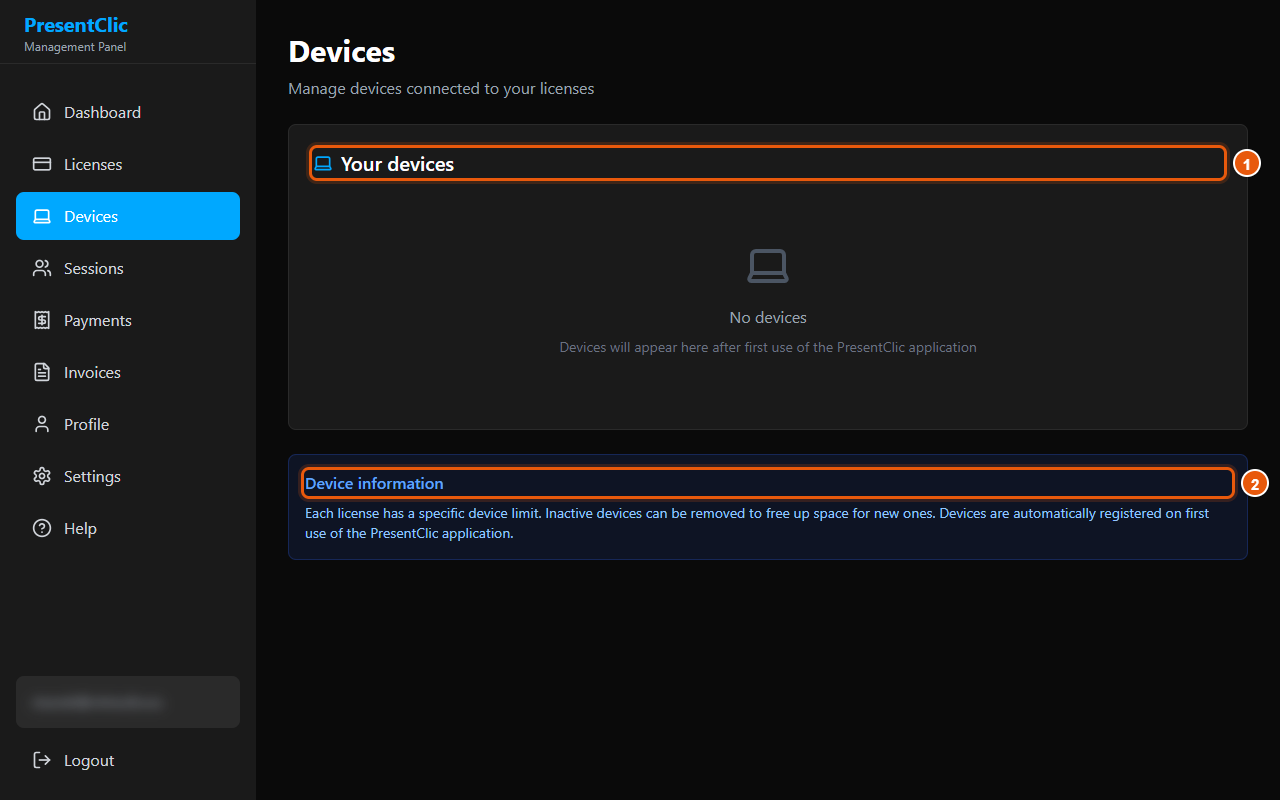
Devices — computers using the license
- 1 Your devices — computers where the license is activated, marked active / inactive. A computer appears here automatically the first time the program runs with the license.
- 2 Device information — each license has a computer limit; inactive ones can be removed.
- Next to a computer: Remove — detaches it and frees a slot in the license (you are asked to confirm).
Result: At its next license check the removed computer shows “This computer was removed from your PresentClic license” and asks you to activate again.
Tip
This is how you recover a slot from a lost or sold computer.
Step 6
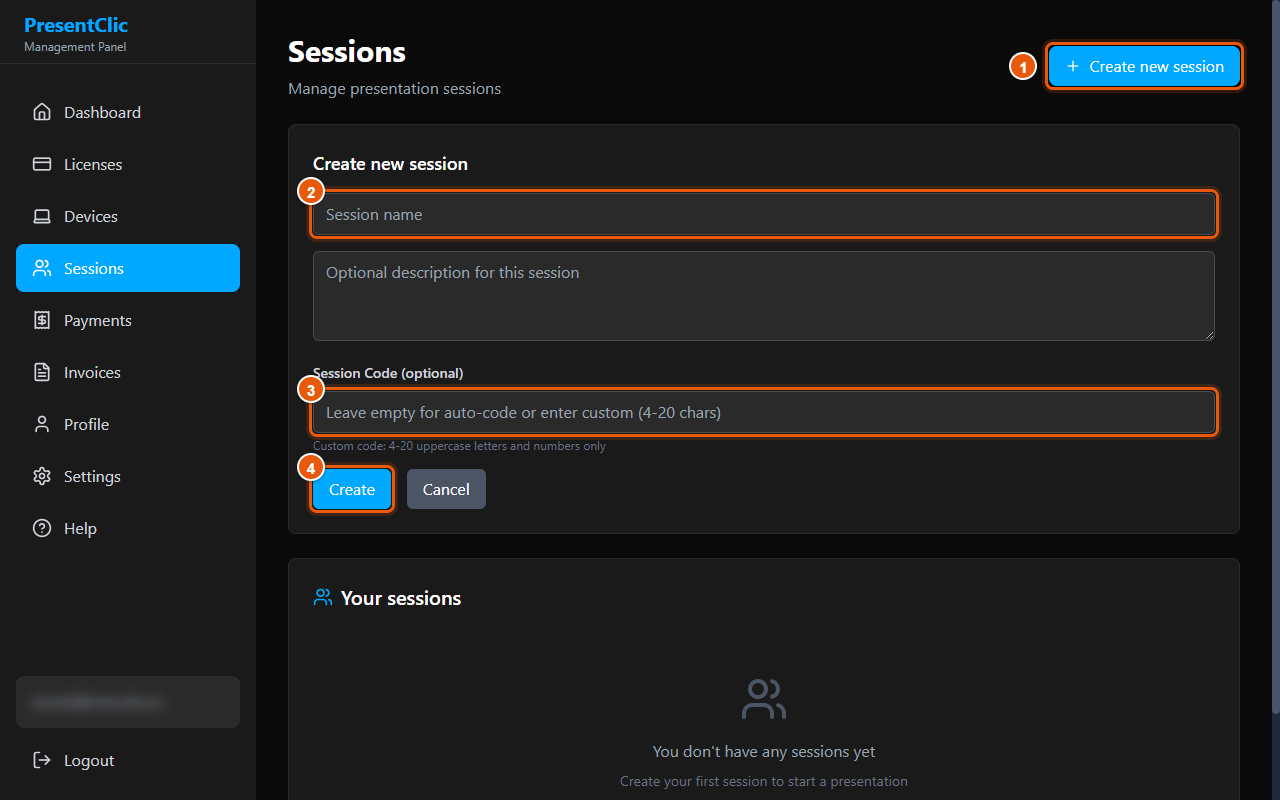
Sessions — permanent codes
- 1 Create new session — opens the form.
- 2 Session name (e.g. “Room A — conference”), below it an optional description.
- 3 Session Code (optional): 4–20 capital letters and digits, e.g. STAGE1. Leave it empty to generate one.
- 4 Create saves the session (Cancel closes the form).
- For each session in the list: copy the code, download the QR code for printing, send an e-mail invitation, delete.
Result: The session appears in the program under My Sessions (click Refresh there).
Step 7
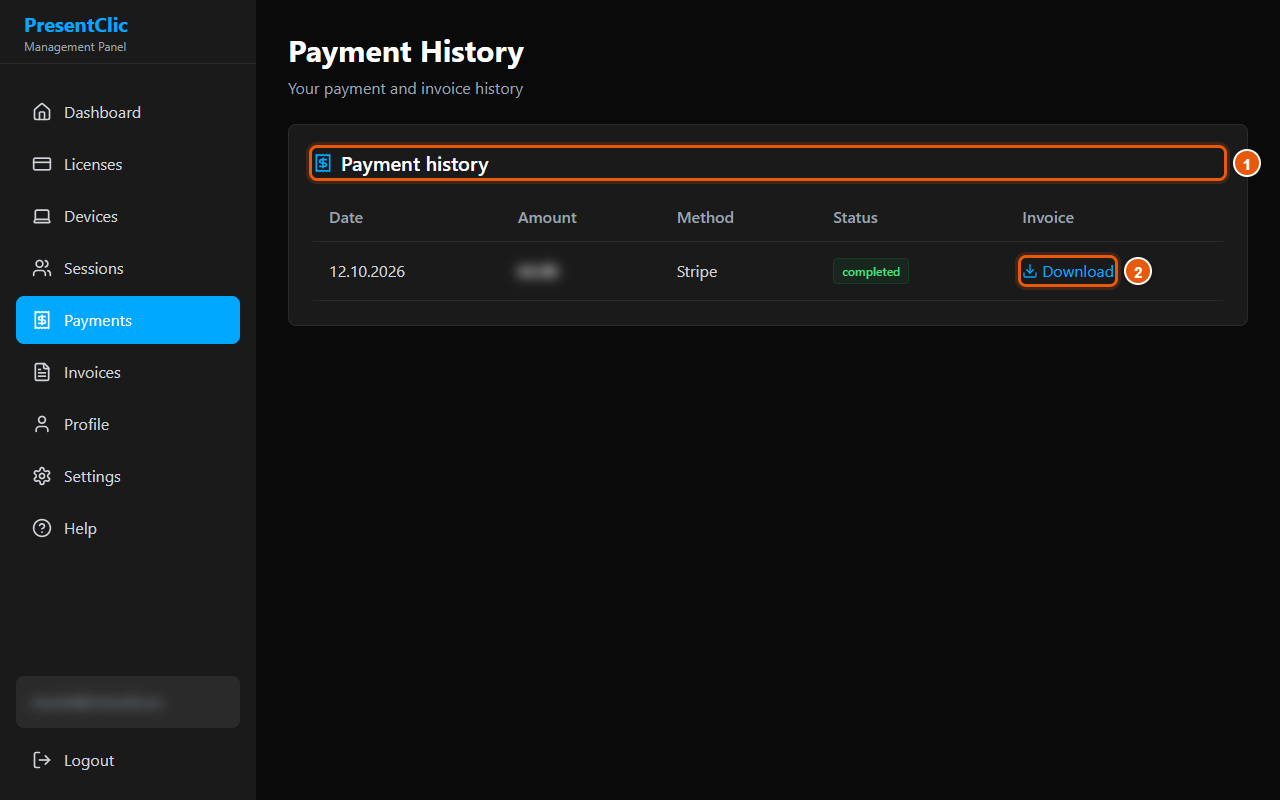
Payments and invoices
- 1 Payment history — date, amount, method (Stripe) and payment status.
- 2 Download — downloads the invoice for the payment.
- The Invoices page lists all invoices: Download saves the PDF, View opens a preview.
Step 8
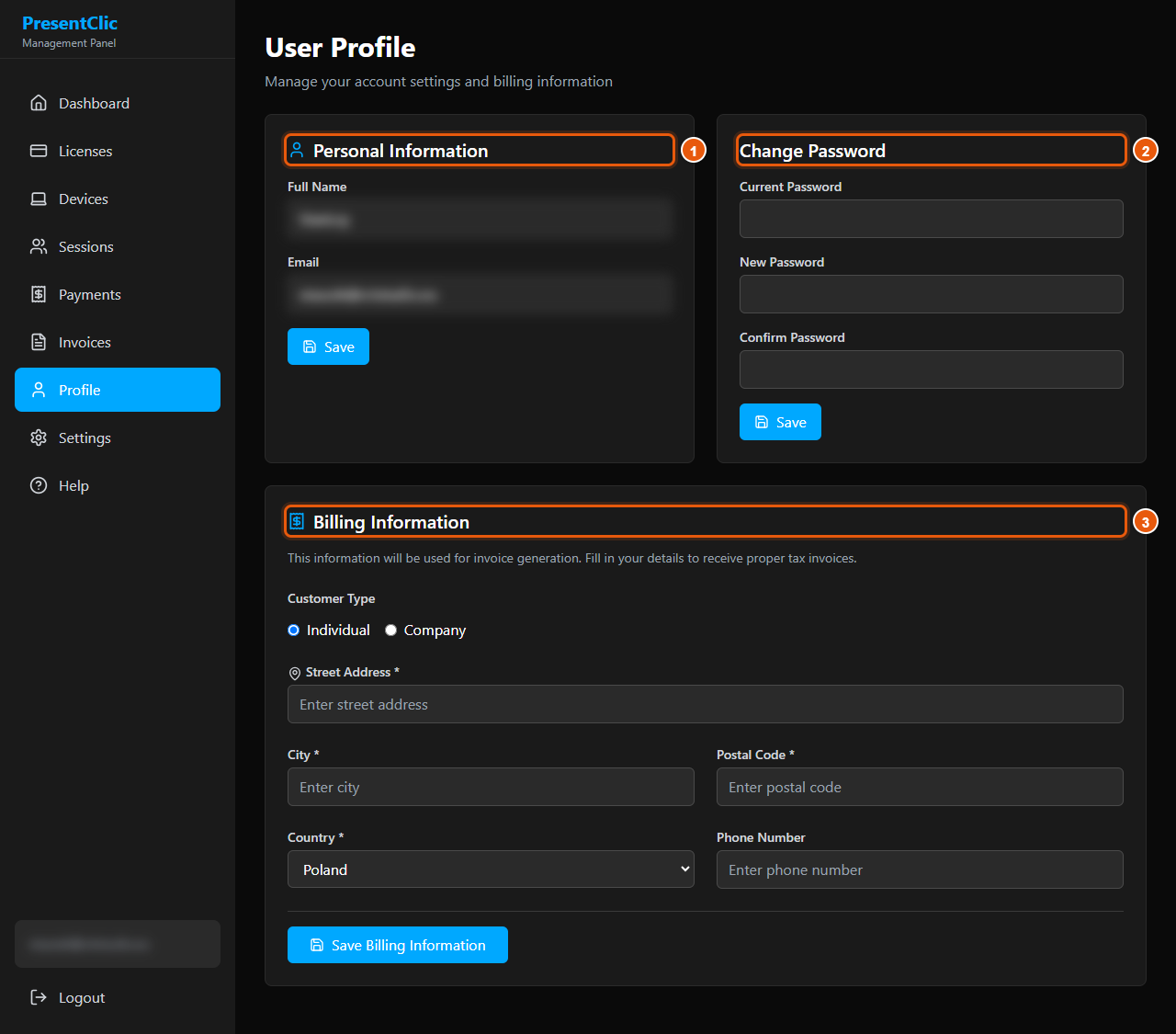
Profile — personal details, password, billing details
- 1 Personal Information — full name and e-mail; Save.
- 2 Change Password — current password, new password, confirmation; Save.
- 3 Billing Information — Individual or Company (company name, VAT ID), address, country, phone; save with Save Billing Information.
Step 9
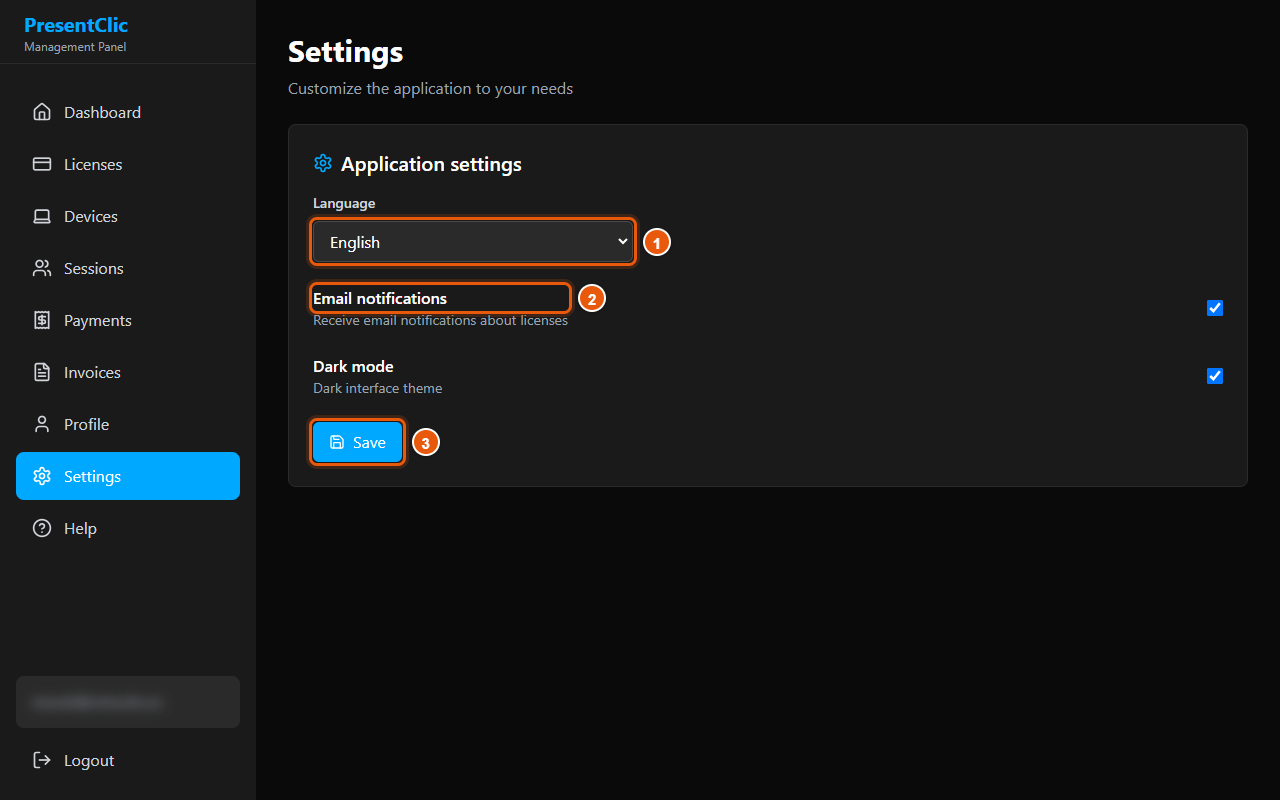
Panel settings and help
- 1 Panel language — Polish, English, German, Spanish.
- 2 Email notifications about licenses (e.g. before expiry); below it Dark mode.
- 3 Save.
- The Help page — help centre with search and contact: support@presentclic.com (reply within 24 hours).
macOSChapter 11
macOS differences
On a Mac PresentClic works just like on Windows — it only needs one-time system permissions.
What it is for
macOS protects your computer from programs that control other apps. PresentClic changes slides in PowerPoint and Keynote, so you must allow it on first launch.
Who can use it
A Mac user with administrator rights (to approve the permissions).
Where to find it
System Settings → Privacy & Security → Accessibility and Automation.
Step 1
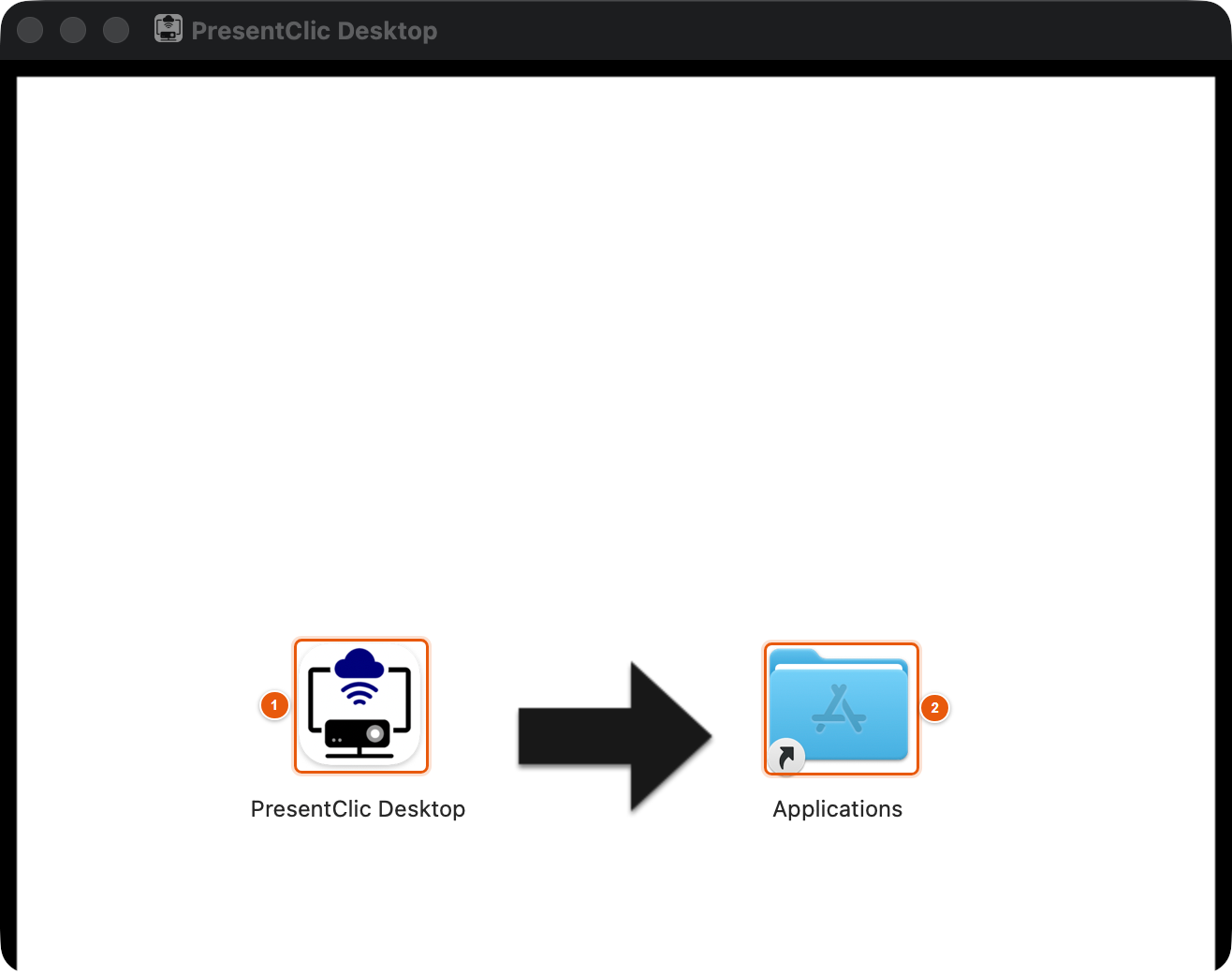
Installing from the DMG
- Open the downloaded .dmg file — an install window appears (no installer, like most Mac apps).
- 1 The PresentClic Desktop icon — drag it…
- 2 …onto the Applications folder.
- Start PresentClic from Applications or Launchpad. The app is signed and notarized by Apple.
Note
Version 2.1.0 requires macOS 13 or later. For older Macs download version 2.0.5 from the website.
Step 2
Accessibility permission
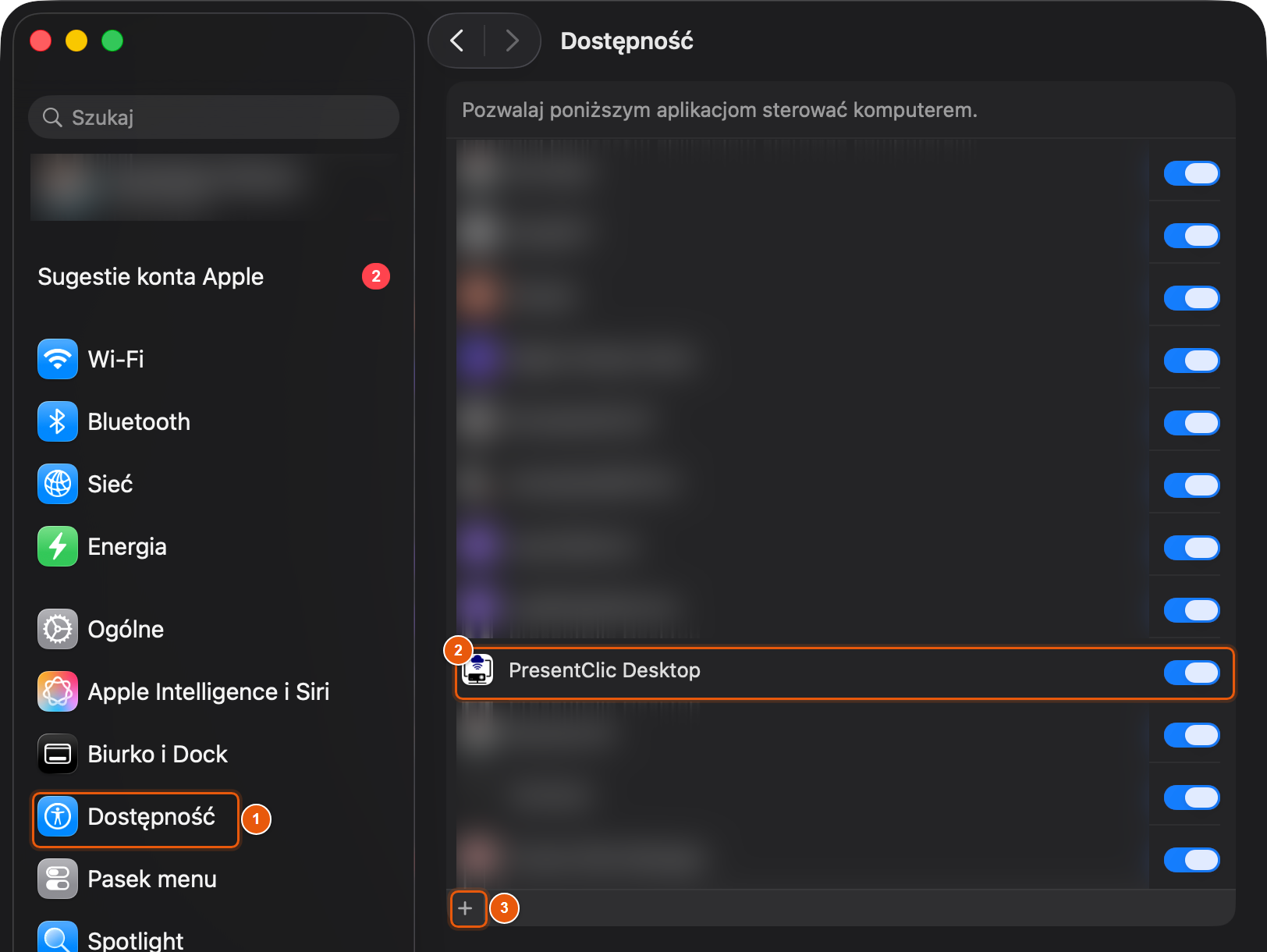
On first launch macOS asks for permission. You can also open it yourself: System Settings → Privacy & Security → Accessibility (screenshot from a Mac set to Polish — the layout is the same).
- 1 The Accessibility section in System Settings.
- 2 Turn on the switch next to PresentClic Desktop.
- 3 If PresentClic is not in the list, click + and select it in Applications.
Result: The program detects the permission by itself — no restart needed.
Tip
The Accessibility prompt keeps coming back although the switch is on (can happen after an update)? Select PresentClic in the list, remove it with − and add it again with + from Applications.
Note
Without this permission the program cannot press keys in the presentation program — slides will not change and keyboard shortcuts will not work.
Step 3
Automation permission
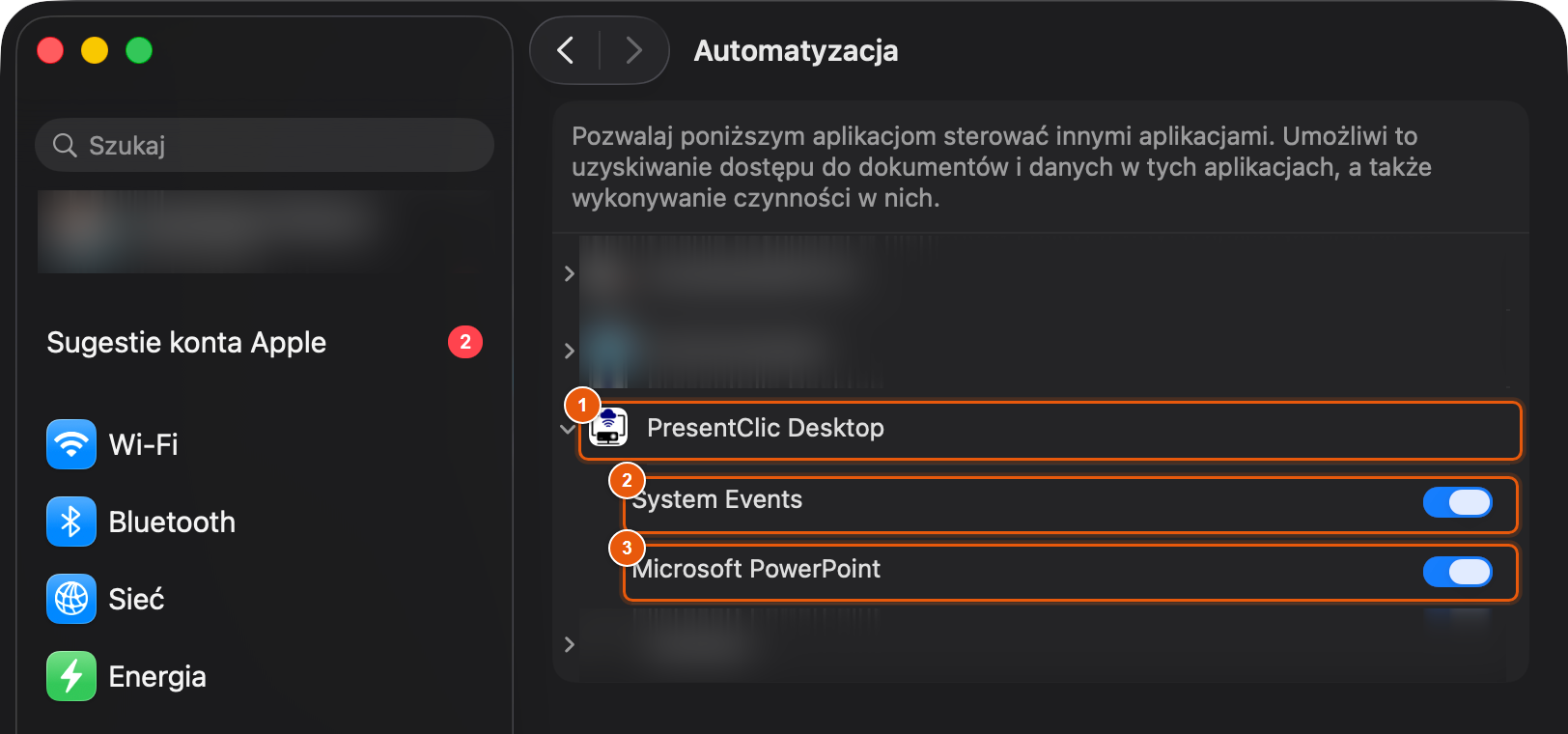
The first time PresentClic controls a program, macOS asks: “PresentClic wants to control…”. Click OK. You can see the permissions in System Settings → Privacy & Security → Automation:
- 1 PresentClic Desktop — expand it to see which programs it may control.
- 2 System Events — needed for changing slides and shortcuts.
- 3 Microsoft PowerPoint — PowerPoint control. Keynote is added here automatically the first time PresentClic controls Keynote.
Tip
Clicked Don’t Allow once? Turn on the switch next to the program here.
Step 4
The program on a Mac
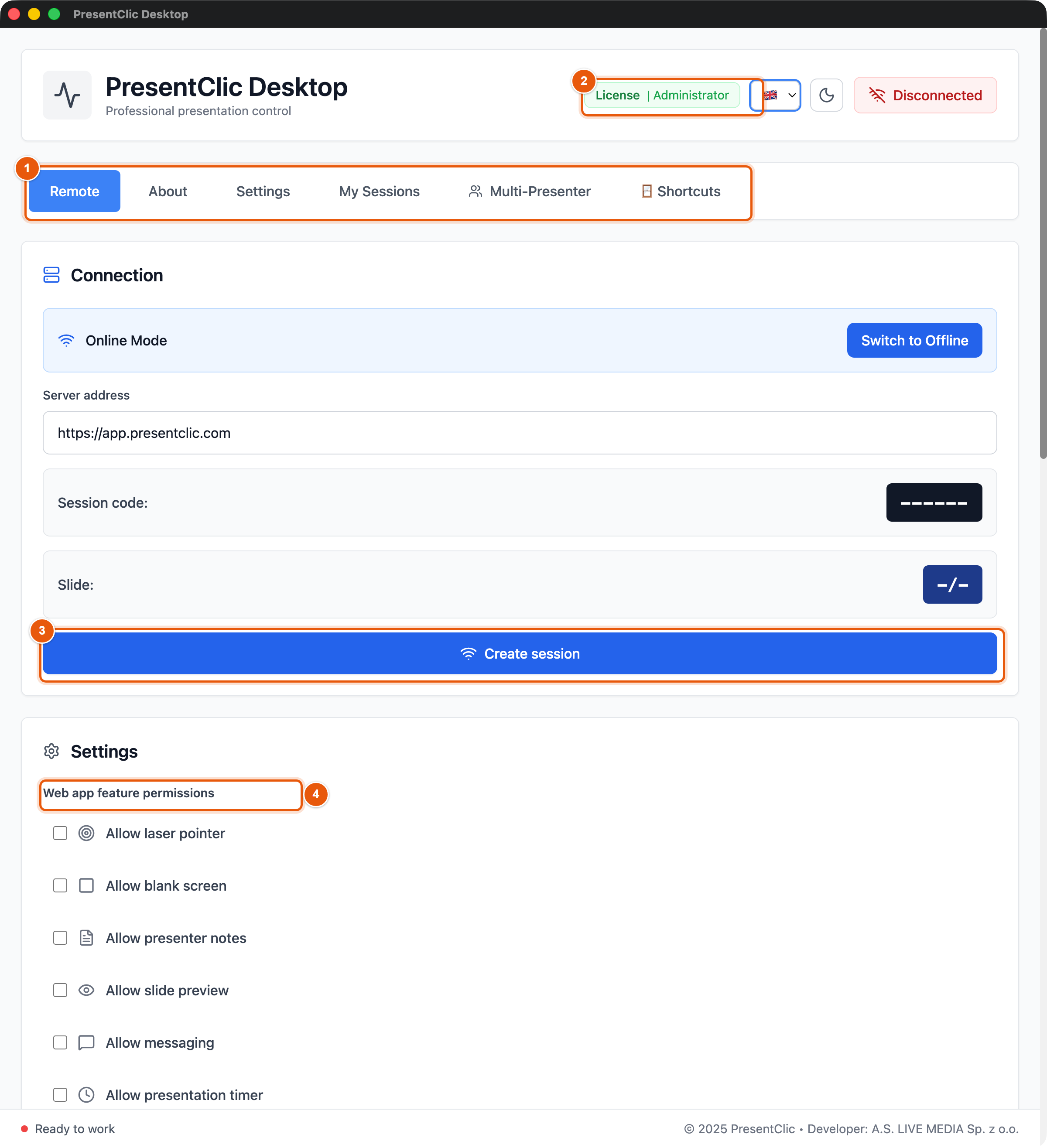
- 1 The tabs are the same as on Windows (on a Mac Settings is the third tab). Everything described from Remote tab onwards works the same way.
- 2 License bar.
- 3 Create session — creates a session for the phone, as on Windows.
- 4 Web app feature permissions — what the phone may do.
Tip
Keyboard shortcuts on a Mac use Cmd instead of Ctrl: Cmd + Shift + L (laser), B (black screen), N (notes), P (preview), M (messages), T (timer), C (countdown).
Step 5
Settings on a Mac — Keynote
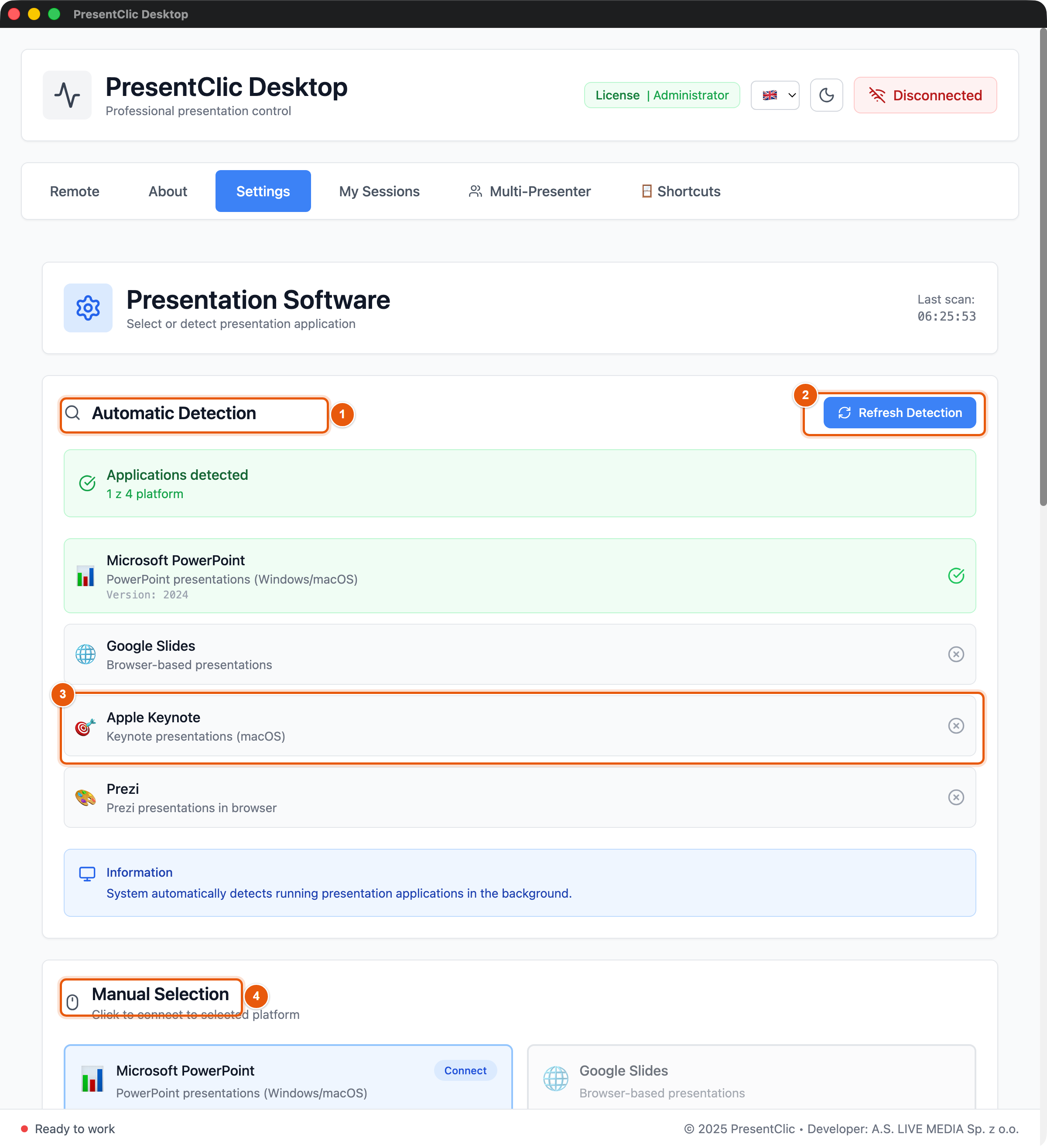
- 1 Automatic Detection — the program detects running presentation programs by itself (green box: detected).
- 2 Refresh Detection — checks again, e.g. after starting Keynote.
- 3 Apple Keynote — supported on a Mac only. Open the presentation in Keynote, start the slideshow and control it from your phone as usual.
- 4 Manual Selection — click Connect next to a program to choose it yourself.
- LibreOffice and the vMix integration are not available on a Mac — both are Windows only.
Step 6
Updates on a Mac
- Since version 2.1.0 updates on a Mac work as on Windows: they download in the background and a window asks Install now / When I quit (Updates).
- Your license and system permissions are kept after an update.
ExtrasChapter 12
Troubleshooting
What to check when the remote does not change slides, the phone will not connect or the program asks for a license.
What it is for
Most problems are solved in a minute. Before contacting support, check the points below.
Where to find it
Support: support@presentclic.com (reply within 24 hours).
Step 1
Phone connected, but slides do not change
- Make sure the presentation is open, ideally in slideshow mode (PowerPoint: F5).
- In the Settings tab check that the right program is selected (PowerPoint, Google Slides, LibreOffice).
- Keep the slideshow window in front — do not cover it with another window.
- On a Mac: check the Accessibility and Automation permissions (macOS differences).
Step 2
Phone will not join the session
- Check the code — 6 characters, no spaces. Most reliable: scan the QR code from the program.
- The session must be created in the program (Create session) — after Disconnect the old code stops working.
- Online mode: both the computer and the phone need internet.
- Offline mode: the phone must be on the same Wi-Fi as the computer. Hotel and conference networks often block device-to-device traffic — use Online mode instead (the phone can use mobile data).
- Windows: Windows Firewall must allow PresentClic to access the network (Settings → Firewall → Allow an app).
Step 3
A feature does not appear on the phone
- Laser, notes, preview, messages and timers are shown only when checked in the remote permissions.
- The phone laser also requires Laser pointer to be turned on in the program.
- Notes and preview work with PowerPoint — LibreOffice does not provide them.
Step 4
The program asks for a license or shows a message
- Connect the computer to the internet — the program verifies the license itself.
- The license messages and their meaning are listed in License and trial (“Good to know” box).
- Device limit reached — remove an unused computer in the client panel (Devices).
- Without internet the program works for up to 7 days.
Step 5
Contacting support
- Write to support@presentclic.com. Include: program version (About tab), system (Windows / macOS and version), presentation program and a description of the problem.
- Attach a screenshot of the activity log — it speeds things up a lot.
Nothing matches your search.